

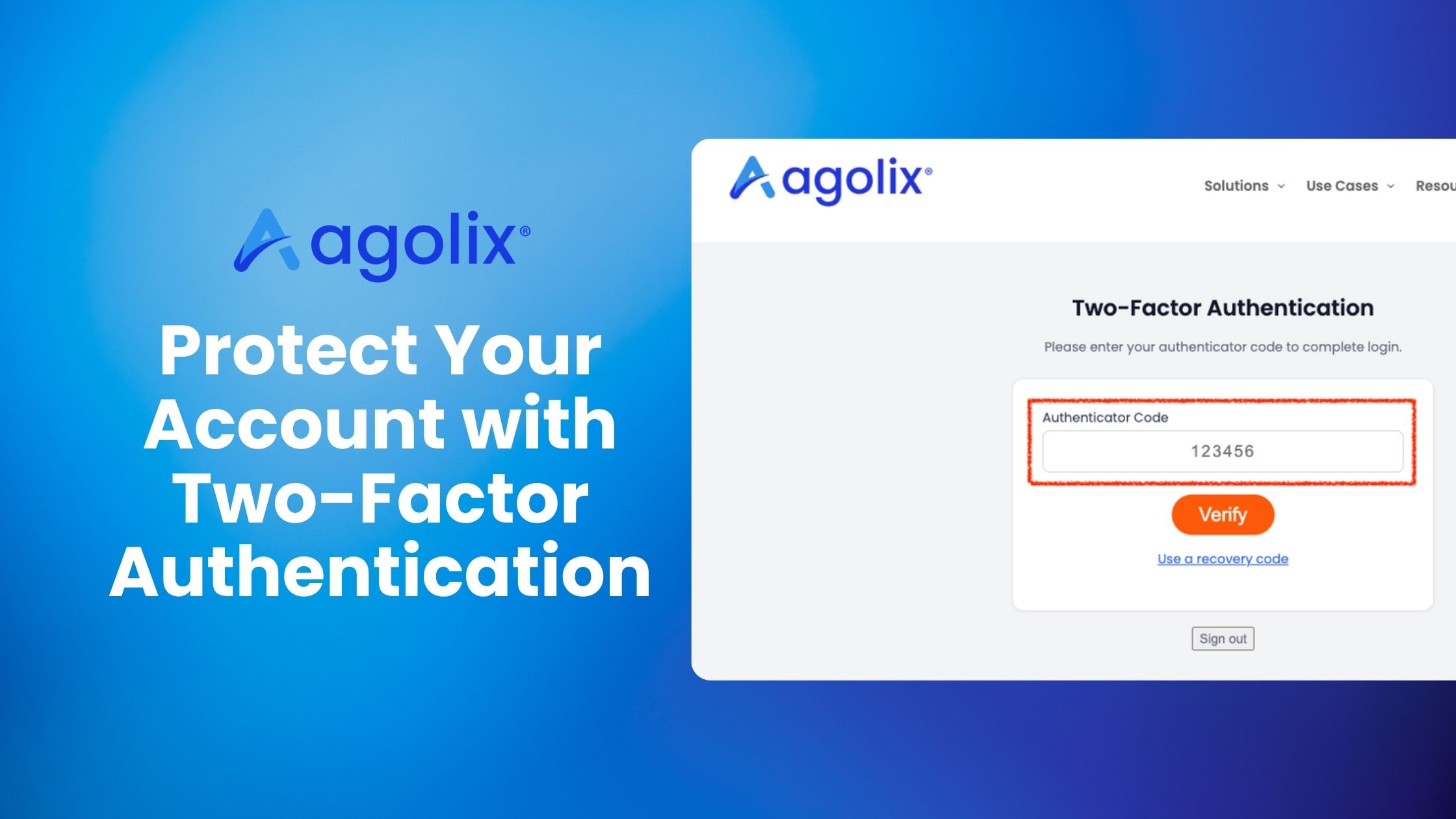

Your assessments and your clients’ results deserve strong protection, so we’ve added two-factor authentication (2FA) to Agolix. When it’s on, logging in takes two steps: your password, then a 6-digit code from an app on your phone. Even if someone gets hold of your password, they can’t get in without your phone.
It’s optional for individual accounts, and team owners can require it for everyone on their team.
Turn It On for Your Account
You’ll need a free authenticator app on your phone, like Google Authenticator, Microsoft Authenticator, or Authy. Then go to “My Account” > “Security” and click “Enable Two-Factor Authentication.”
- Scan the QR code with your authenticator app.
- Save your recovery codes. Click “Download Codes” and keep the file somewhere safe. If you ever lose your phone, each code lets you log in once.
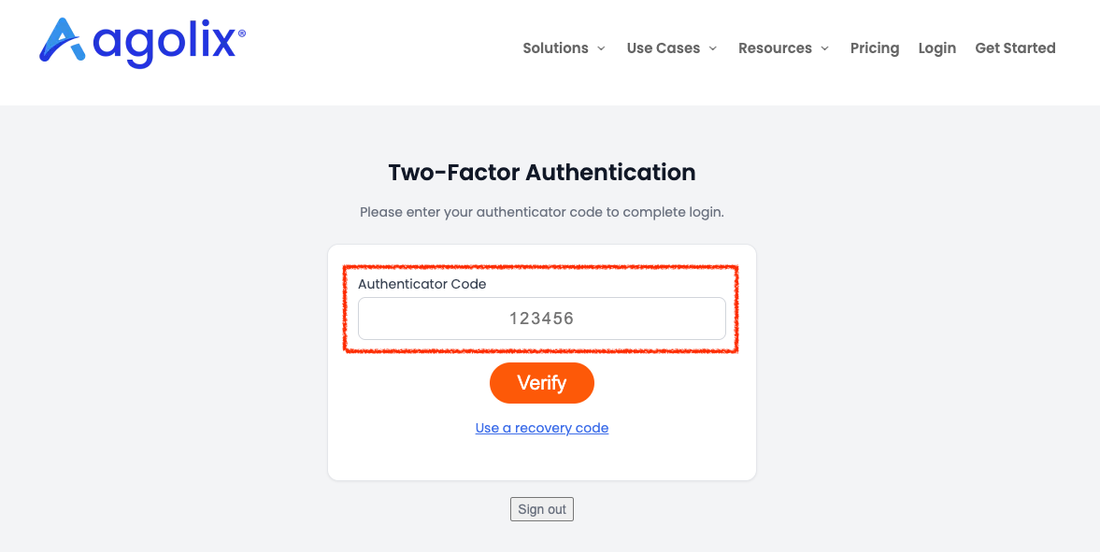
- Confirm by typing in the 6-digit code your app shows.
From then on, you’ll enter a code from your app each time you log in. Used up a few recovery codes? You can get a fresh set from the “Security” tab anytime.
Require It for Your Team
Team owners on the Professional plan can require 2FA for every member of their team. First turn it on for your own account, then go to “My Account” > “Teams” and tick “Require 2FA for all team members.”
Your team members will get an email letting them know, and they’ll be walked through setup the next time they log in. If someone on your team gets a new phone, you can reset their 2FA right from the “Teams” page by clicking the reset icon on their row. They’ll set it up again the next time they log in.
Nothing Changes Unless You Turn It On
If you don’t turn on 2FA (and your team doesn’t require it), logging in works exactly as before. Your respondents are never asked for a code; taking an assessment hasn’t changed at all. You may notice the log in and password reset pages have a fresh new look, though.
Lost Your Phone?
If you lose your phone and your recovery codes, contact our success team. We’ll confirm it’s you by sending a code to the email address on your account, then reset your 2FA so you can set it up again.
How to Try It
2FA is live in your account now. Just head to “My Account” > “Security” to turn it on. For a full walkthrough, see Set Up Two-Factor Authentication in our reference guide.