

- What is a Binary Question?
- Create a Binary Question
- Enter Your Question
- Choose a Display Style
- Set the Labels (Buttons only)
- Assign Point Values
- Assign Question to Type (for Multi-Type Assessments)
- Assign Question to Section
- Assign a Question Identifier
- Question Required Setting
- Question Enabled Setting
- Show on Registration Page
- Don't Show in Results and Report
- Show Question When (for Conditional Logic)
- Optional Question Notes Field
- Save Your Question
What is a Binary Question? #
A Binary Question is answered with a simple two-choice response — such as Yes/No or True/False — or by checking a box.
- Binary questions can be scored and assigned to types (for Multi-Type assessments).
- Binary questions can also be shown on the assessment’s registration page (set point values to zero to keep the question unscored there).
- You can choose how a binary question is displayed to respondents: as two Buttons or as a Checkbox.
Create a Binary Question #
Start by entering the Agolix editor.
First, select the “Edit” link in the menu underneath your assessment.

Then click on the “Questions” tab at the top of the page.
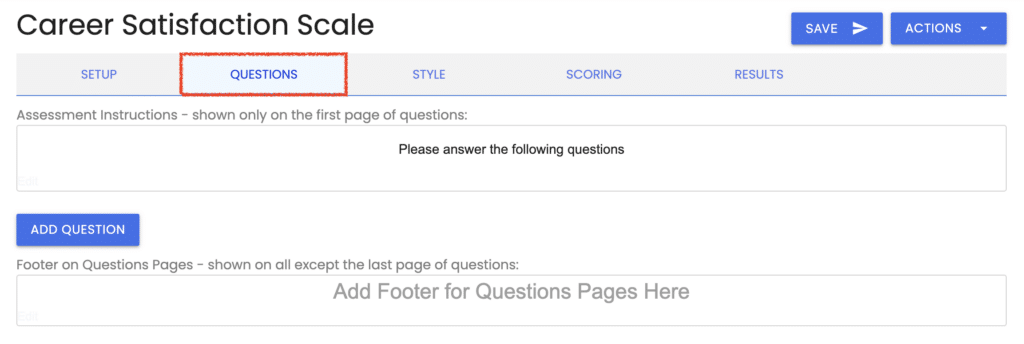
Click on the “Add Question” button.
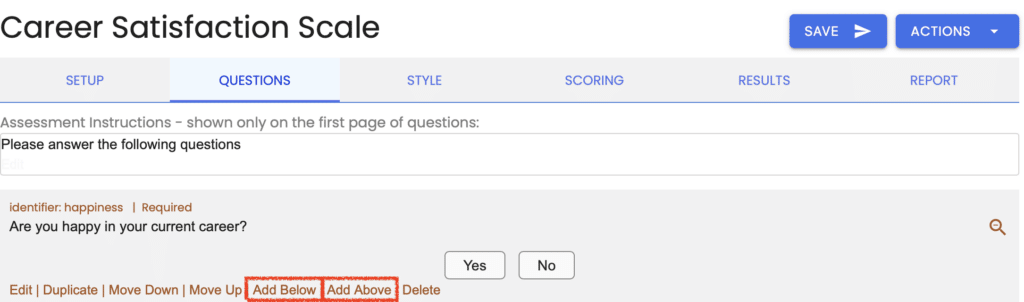

Alternatively, you can mouse over any existing questions and choose either the “Add Above” or “Add Below” links. These links will add your new question either above or below your existing question.
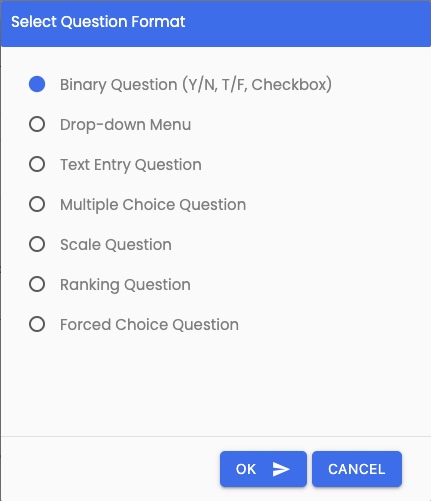
Select “Binary Question” from the list of options and click “OK.”
Enter Your Question #
Enter your question in the editor window and adjust the styling as desired.
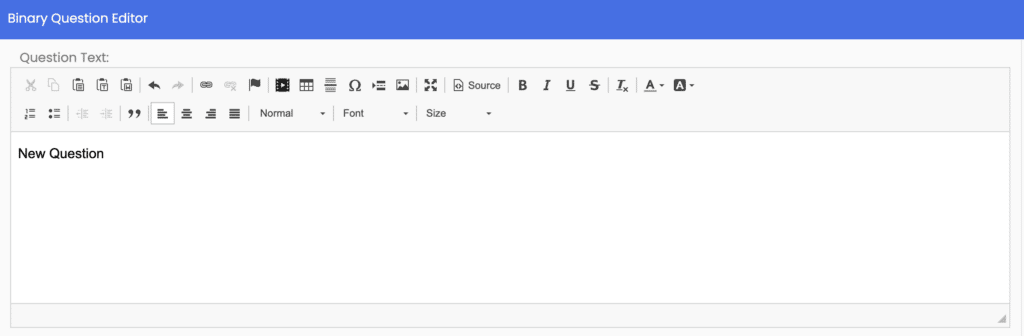
You can also include an image, video, symbols, and tables with your text.
Choose a Display Style #
Next, select how this question will be presented to respondents using the “Display As” setting.
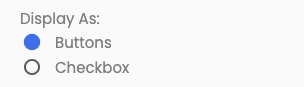
Buttons displays two side-by-side answer choices. Use this style for opposite-choice questions such as Yes/No or True/False.
Checkbox displays a single checkbox that respondents check or leave blank. Use this style for standalone statements such as “I agree to the terms above.”
The fields that follow will vary depending on which display style you select.
Set the Labels (Buttons only) #
Next, you can set the labels for your answers.

“True” and “False” are the default labels, but you can set them to whatever you want. Another common pair is “Yes” and “No.”
Assign Point Values #
Buttons Display Style #
Set the point value for each answer choice.

The most common values are 1 and 0, but you can set these as desired.
Checkbox Display Style #
Set the point value awarded when the box is checked. This field is labeled “Point Value – Points awarded if checked.”

No points are awarded if the box is left unchecked.
Assign Question to Type (for Multi-Type Assessments) #
For Multi-Type Assessments only, you will see a field where you assign your question to one of the types you’ve set up under the “Types” tab.
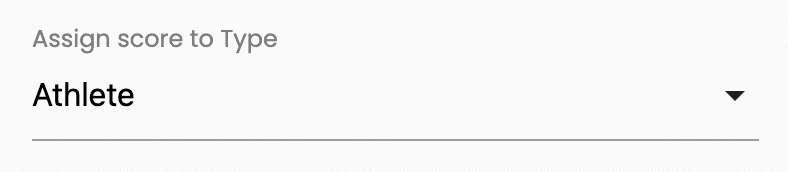
The point value(s) set for this question will be assigned to the type specified here.
Assign Question to Section #
In the “Setup” tab, you can configure your assessment to display your questions by section. If you’ve done so, you’ll see a setting here to assign your question to one of your sections.

Please note that sections control how questions are separated visually during the assessment. *Sections do NOT affect scoring.
- For Multi-Type Assessment: To set up types or categories for scoring, create types on the “Types” tab. Learn more about types.
- For Simple Assessment: If you need to create multiple categories or types and provide a separate score for each, please create a Multi-Type assessment.
- We can help you convert your Simple assessment into a Multi-Type one (or vice versa). Please contact us for assistance.
Assign a Question Identifier #
This optional field enables you to reference the answer to a question.

This field can display a respondent’s answer in the assessment results by invoking it as a merge code.
Note: If you want to use this question as a trigger question for conditional logic, it is necessary to specify a question identifier.
You can also use the question identifier to pass the answer through a webhook or Zapier integration to an outside application.
Question Required Setting #
Scroll down to see where you can require the respondent to answer the question.

If this box is unchecked, this question is optional, and the respondent can proceed to the next question without answering it.
Question Enabled Setting #
Next is the “Question Enabled” setting. Each question that you create will be enabled by default. You can disable individual questions in your assessment by unchecking this box.

Disabled questions will not be presented in your assessment.
Show on Registration Page #
Check this box when you want this question to be shown on the assessment’s registration page.

Binary questions are always scored, so if you use one on the registration page, set both answer point values to zero so it doesn’t affect the respondent’s score. Note that Conditional Logic does not apply to the registration page, even though Binary questions can be used as trigger questions elsewhere in the assessment.
Don’t Show in Results and Report #
Check this box if you do not want this question and its response to appear in the on-screen results, emailed results, or PDF report.

This setting is useful for questions that are used for demographic or conditional logic purposes only.
Show Question When (for Conditional Logic) #
With Advanced, Private Label, and Professional plans, the “Show Question When” field is shown:

By default, this option is off so your question will always be shown when the Question Enabled setting above is enabled.
Please see Add Conditional Logic for details on how to use this feature.
Optional Question Notes Field #
Finally, there’s an additional text window where you can add notes that will appear below the question in your assessment.
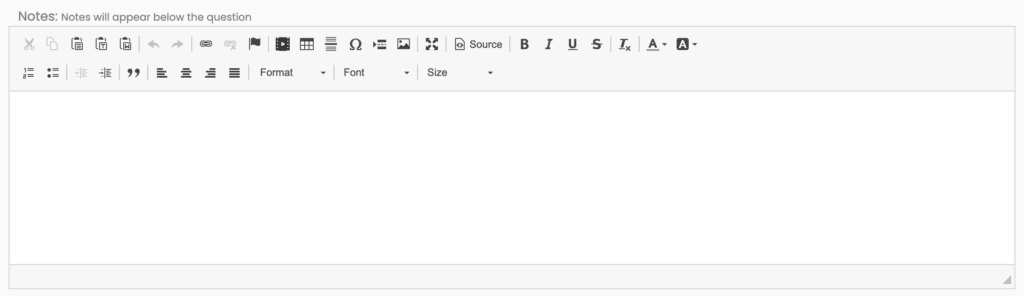
You can also present your “Question Notes” with assessment results when you enable the “Show questions and responses” setting for the “Edit On-Screen Results,” “Edit Emailed Results,” and “Edit PDF Report” settings on the “Results” tab.
Save Your Question #
When you click the “Save” button to store your question settings, you are returned to the “Questions” tab, where you’ll see your recently-added question.
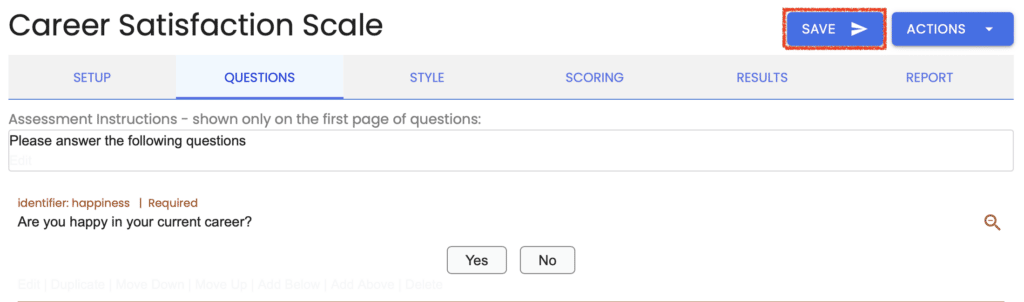
Please review the rest of the Reference Guide to learn more about our software.
Thank you for choosing Agolix!