

Host Your Video and Set Privacy #
Agolix doesn’t store video files. You host your video on YouTube or Vimeo, then paste a bit of code into your assessment so the video plays right inside it.
Don’t have an account yet? Both are free to set up. If you have a Gmail or Google account, you can use it to sign in to YouTube.
Choose Your Privacy Setting #
Set your privacy before you copy anything. This is the most common reason a video won’t play for the people taking your assessment.
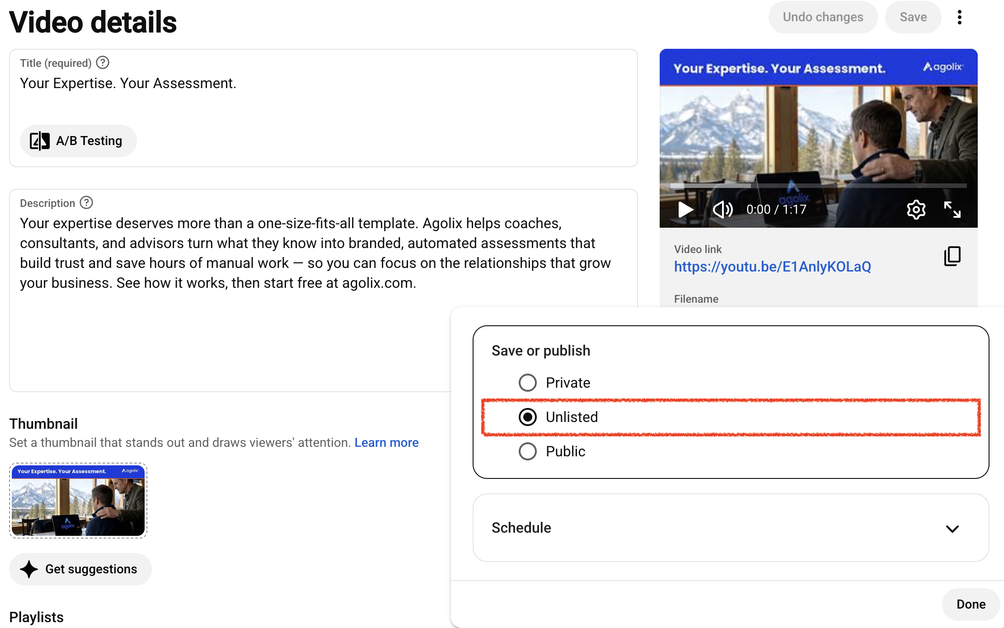
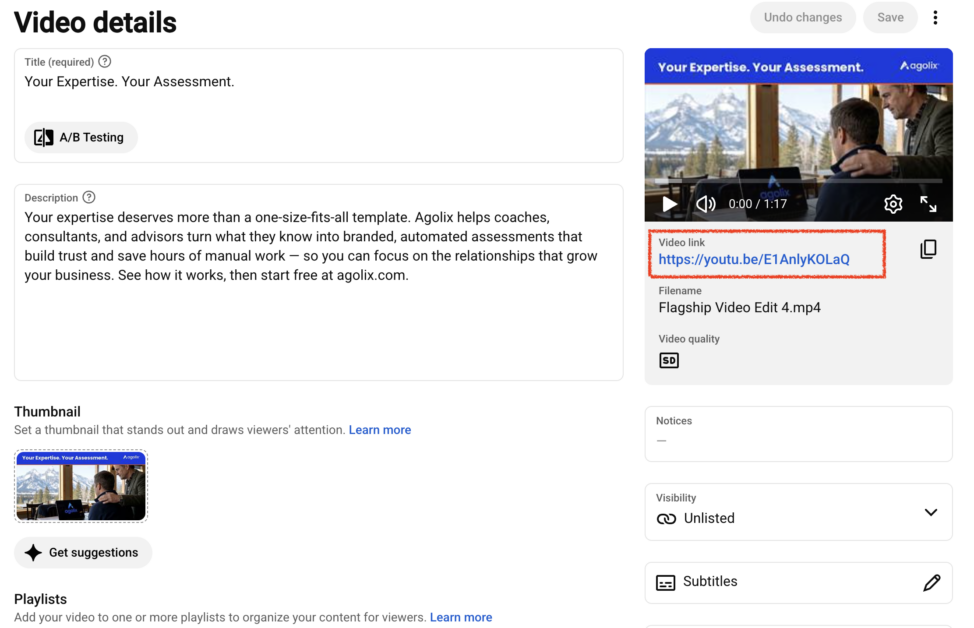
On YouTube, this is the Visibility setting. You’ll see it as the last step when you upload. To change it later, go to YouTube Studio, click Content, click your video to open its details, and click the Visibility card on the right.
Choose Unlisted — your video plays in your assessment, but it won’t show up in YouTube search or on your channel. Public works too, but anyone can find the video. Don’t choose Private — private videos won’t play for your respondents. They’ll see “Video unavailable” instead.
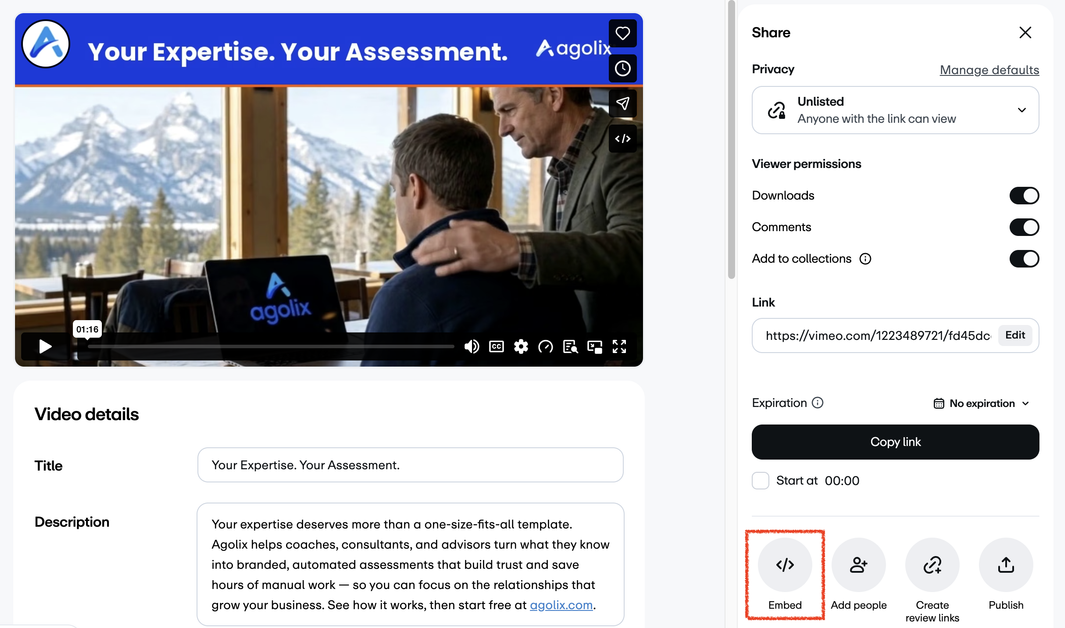
On Vimeo, open your video and click Share. Privacy is the first thing in the panel that opens. Choose Unlisted — anyone with the link can view, which is what your assessment needs. Public works too, but your video becomes findable on Vimeo. Don’t choose Private or Password — neither will play for your respondents.
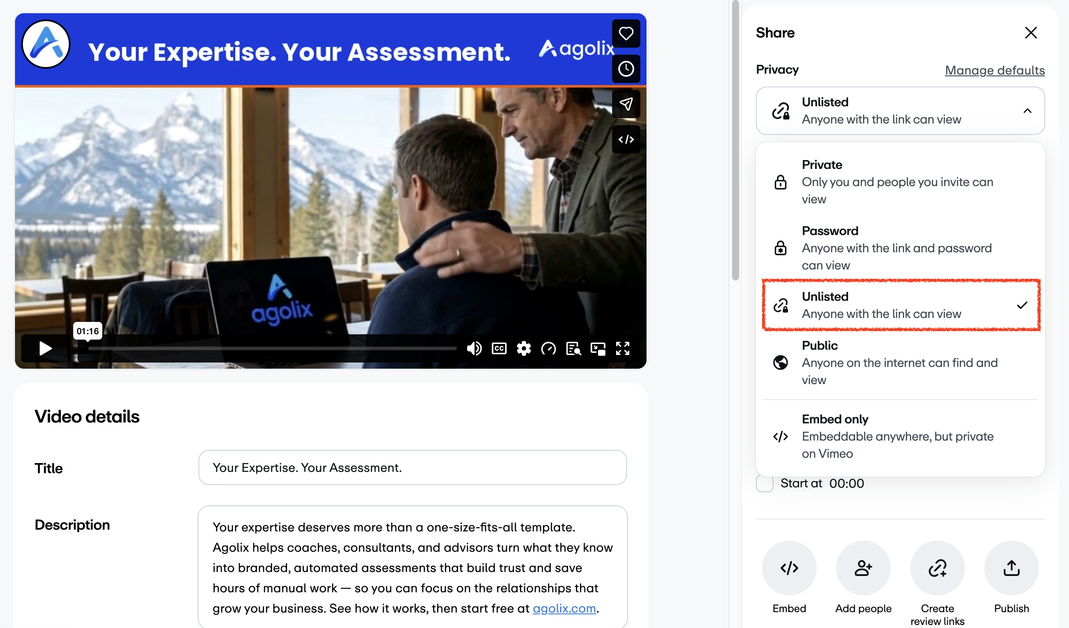
If you see an Embed only option, that one’s worth considering. Your video plays wherever you embed it but stays private on Vimeo, so it won’t turn up if someone browses your account.
Get Your Embed Code from YouTube #
Start on your video’s public page, not in YouTube Studio. Studio is where you manage your video, and its share panel only gives you the video link — there’s no embed code there. From Studio, click the video link or the thumbnail to open the video on YouTube.
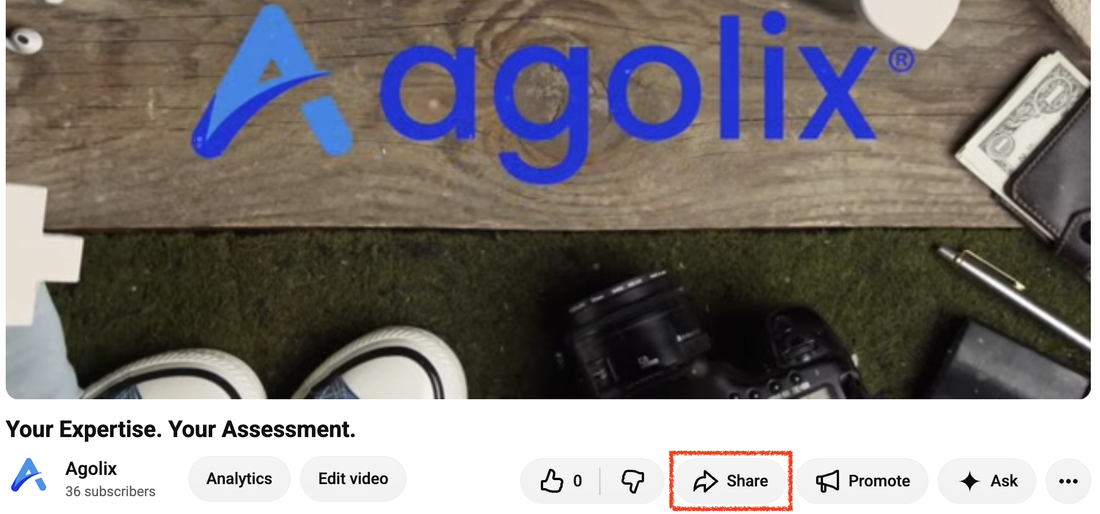
On your video’s page, click the Share button underneath the video.
A window pops up with sharing options. Click Embed — it’s the first one in the row.
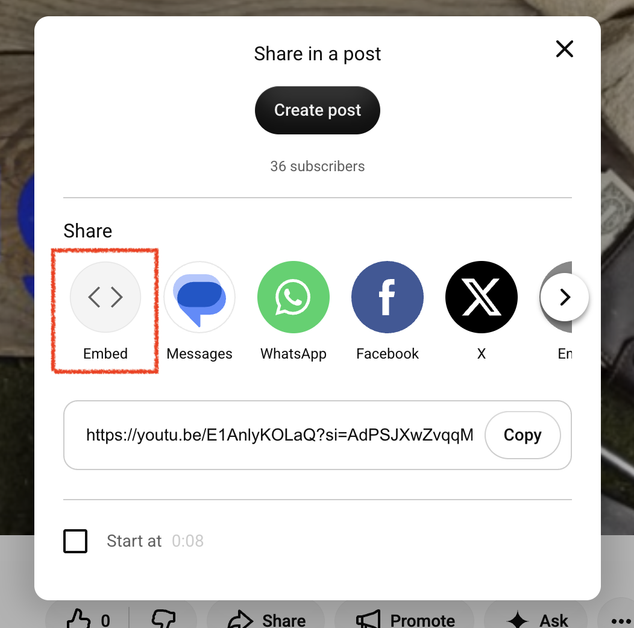
A window pops up with sharing options. Click Embed — it’s the first one in the row. Ignore the Copy button next to the link further down; that copies your video’s web address, not the embed code.
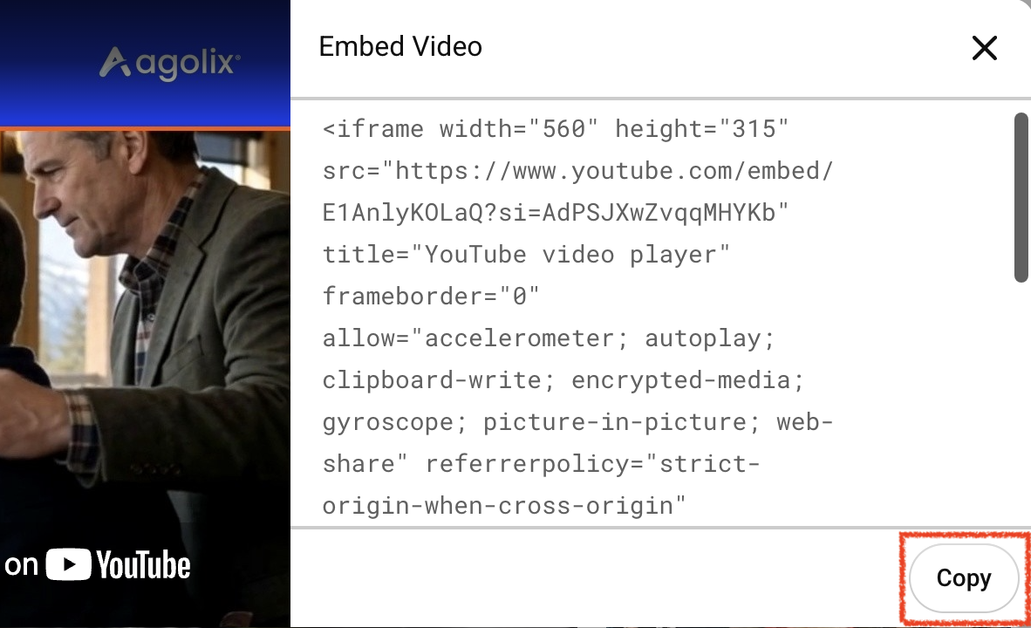
The Embed Video panel opens with your code. Click Copy at the bottom right. You want the code that starts with <iframe — not the video’s web address. A plain link won’t turn into a playable video.
Scrolling down inside that panel reveals a few optional settings. You can leave them as they are. The one worth a look is Enable privacy-enhanced mode, which stops YouTube from setting cookies on your respondents unless they actually play the video.
Get Your Embed Code from Vimeo #
Vimeo keeps everything in one place. You’re already in the Share panel from the privacy step — no need to go anywhere else. At the bottom of that panel, click the Embed button — the </> icon next to Add people. Ignore the Copy link button above it; that copies your video’s web address, not the embed code. (Note that the Embed button is different from the “Embed only” privacy setting further up the panel.)
The Embed panel opens with a few options. Leave Size set to Responsive — that’s what makes your video fit properly on phones. Then click Copy embed code.

Vimeo’s code starts with <div rather than <iframe. That’s normal — the iframe sits inside it. Copy the whole thing.
Add to Editor Window #
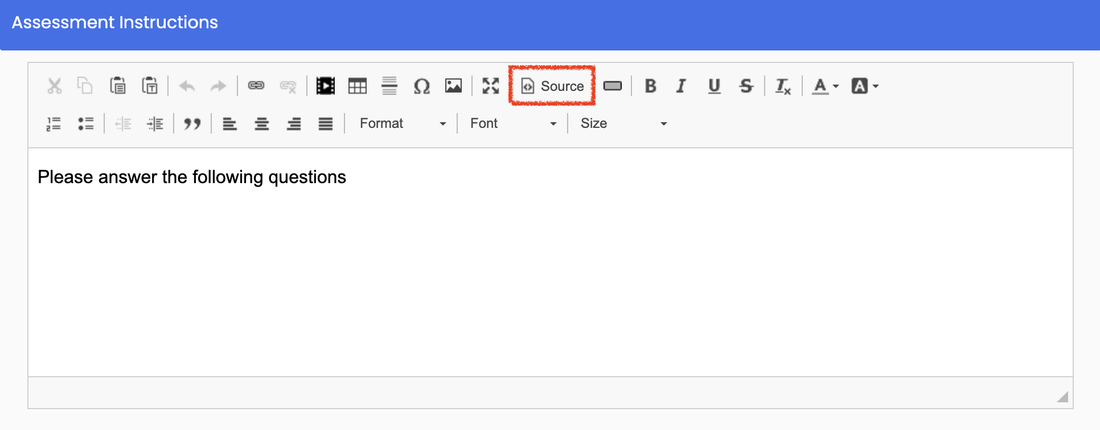
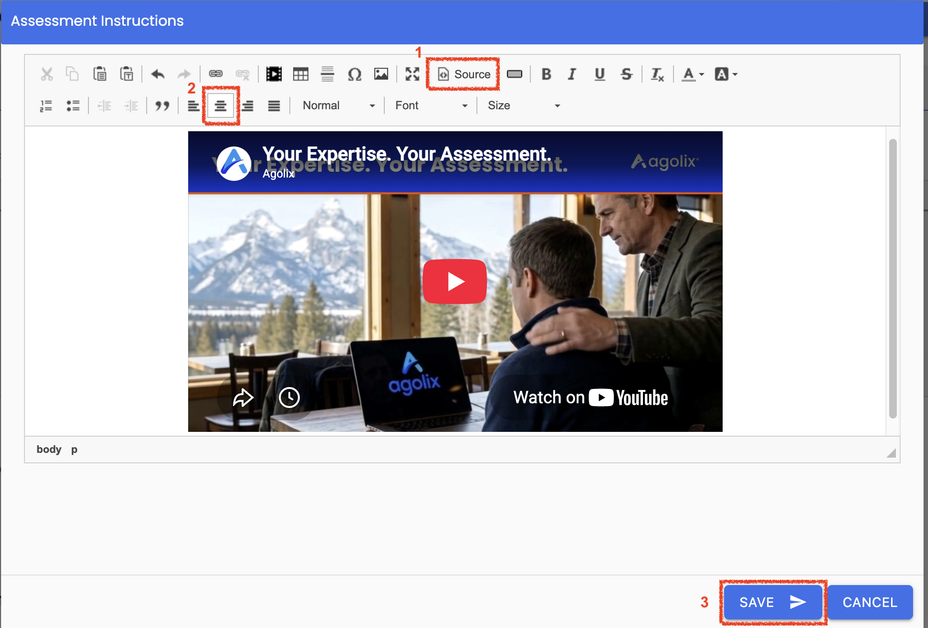
Now go to the editor window in Agolix where you want to place your video and click on the Source button at the top of the window.
Paste Your Embed Code #
Paste your embed code (CTRL-V on your PC or Command-V on your Mac).
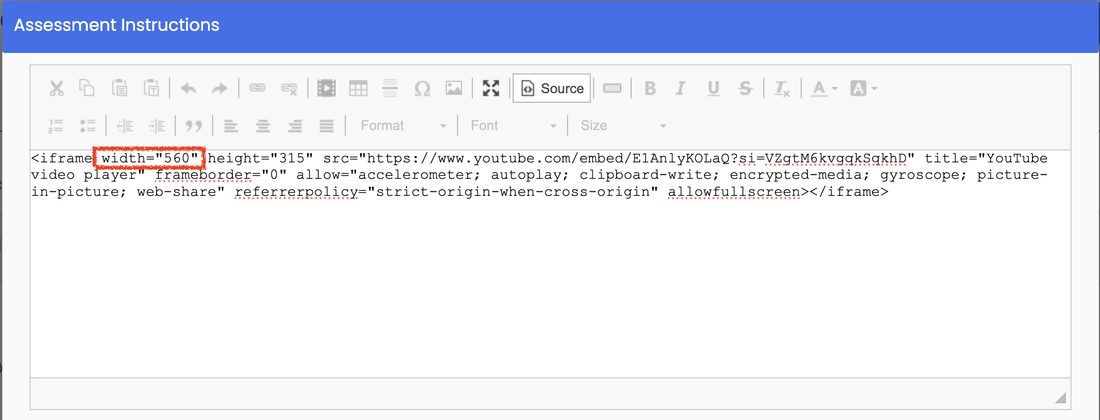
Your embed code will be displayed. You can edit the width and height of your video here.
If you copied from YouTube, a fixed width like 560 can run off the edge of the screen on a phone. Changing width=”560″ to width=”100%” lets the video shrink to fit whatever device someone’s using. Vimeo’s responsive code already handles this, so there’s nothing to change.
Adjust and Save Your Settings #
Click Source again to see your video, center it on the screen if you’d like, and click Save to save your changes.
If Your Video Isn’t Working #
“Video unavailable” or a blank player — Check your privacy setting. On YouTube the video needs to be Unlisted or Public, not Private. On Vimeo, check that it isn’t password protected.
A link shows up instead of a video — You pasted the video’s web address rather than the embed code. Go back and use the Embed option: YouTube’s code starts with <iframe, Vimeo’s with <div.
Nothing appears after pasting — You may have pasted outside of Source mode. Click Source, paste the code there, then click Source again to preview.
The video is cut off on phones — On YouTube, change the width in your embed code to 100%. On Vimeo, check that Size was set to Responsive when you copied the code.
NOTE: You can add videos anywhere in your assessment that you see the HTML editor shown above – in the header, instructions, and even in the questions themselves!
Please review the rest of the Reference Guide to learn more about our software.
Thank you for choosing Agolix!