

Questions Tab #
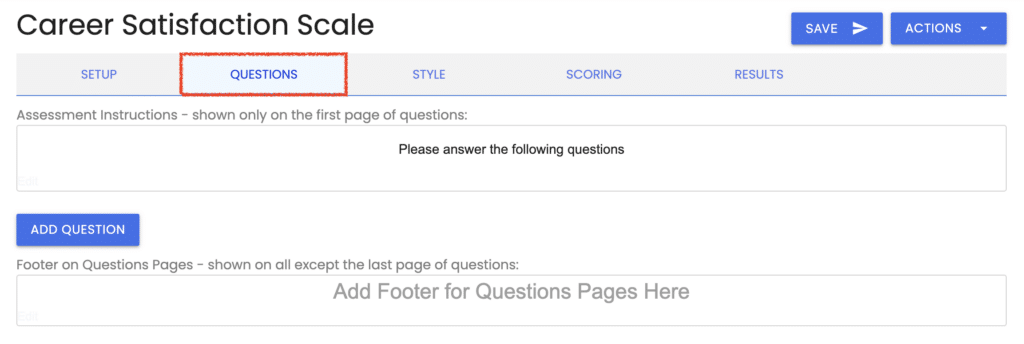
When you click the “Questions tab,” you’ll see fields for “Assessment Instructions,” “Footer on Questions Pages,” and an “Add Question” button. Click the “Add Question” button.
Question Formats #
In this popup window, select your question format:
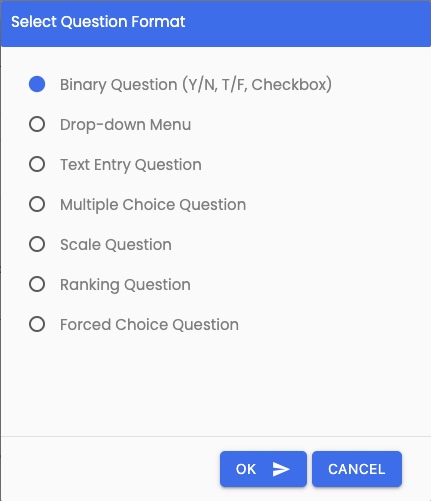
With Agolix, you can ask questions in any of these different formats:
- Binary: Answer by choosing one item from a set of opposites, such as Yes/No, True/False, or by checking a box
- Drop-down: Answer by selecting from a drop-down list
- Text Entry: Answer by typing free-form text — either a multi-line response or a single line with optional validation for email, date, URL, phone number, and more
- Multiple Choice: Answer by choosing one item from a list (previously known as Options Questions), AI capability
- Scale: Answer by choosing a number on a scale, such as 1 to 5 or 1 to 10, AI capability
- Ranking: Answer by arranging a list of items in order (Multi-type Assessments only)
- Forced Choice: Answer by selecting one side of a 5-point spectrum scale, where each side awards points to a different type (Multi-type Assessments only)
You can also Generate Questions using AI.
Many question formats can be scored (binary, multiple choice, ranking, forced choice, and scale).
Drop-down questions are not scored and cannot be assigned points or types. Text entry questions are not scored and cannot be assigned points, but can be assigned to types for reporting purposes.
Both drop-down and text entry formats are better for collecting qualitative and demographic information from your respondents.
You can mix different types of questions in the same assessment.
Please review the rest of the Reference Guide to learn more about our software.
Thank you for choosing Agolix!
Continue to Quick Start: Assessment Styling ->