
Video Guide #
Welcome to the Agolix Assessment Dashboard
(Video link opens in a new browser tab)
Dashboard Overview #
When you first log into your account, you’ll be directed to your account dashboard.
The “New Assessment” button is in the dashboard’s upper right corner.
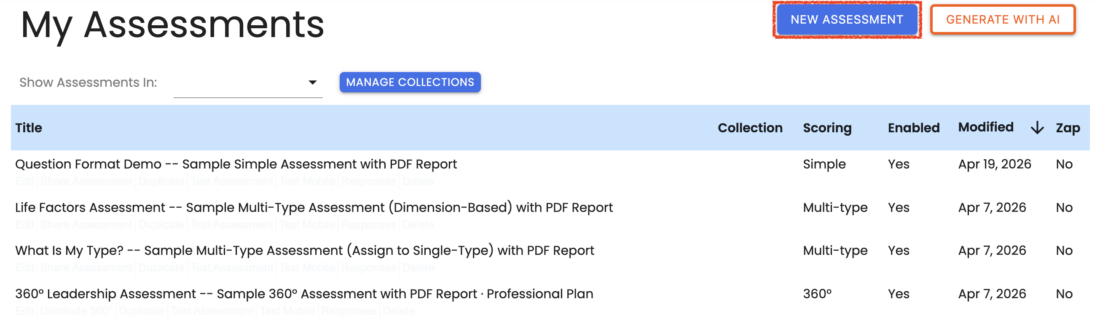
Click this button to create a new assessment.
You can also click the “Generate With AI” button to build a complete assessment using the AI-Powered Assessment Generator — a faster way to get started with a fully built assessment from a simple prompt.
See Create Your First Assessment for details.
Collections #
With Professional plans, several settings are available to help you organize your assessments by collection.

Filter Assessments by Collection #
The “Show Assessments” drop-down menu offers the ability to show only assessments that are assigned to a specific collection. The “All Collections” setting is selected by default.
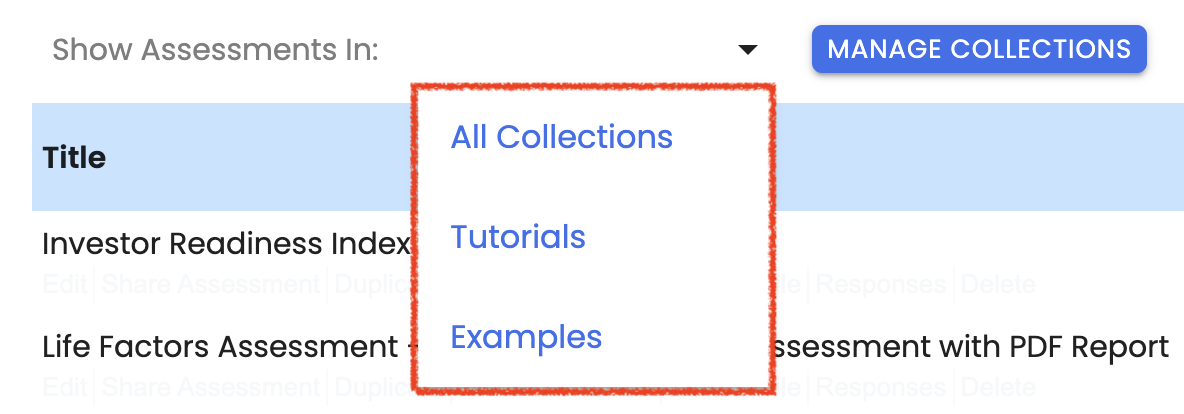
See Assign to Assessment Collection for more details.
Manage Collections #
Click the “Manage Collections” button to view a list of your Collections on a dedicated screen.

Create A New Collection #
Click the “Create a New Collection” button to create a new assessment collection.

Edit Collection #
When you do so, a window on the screen will allow you to enter the details for your collection.
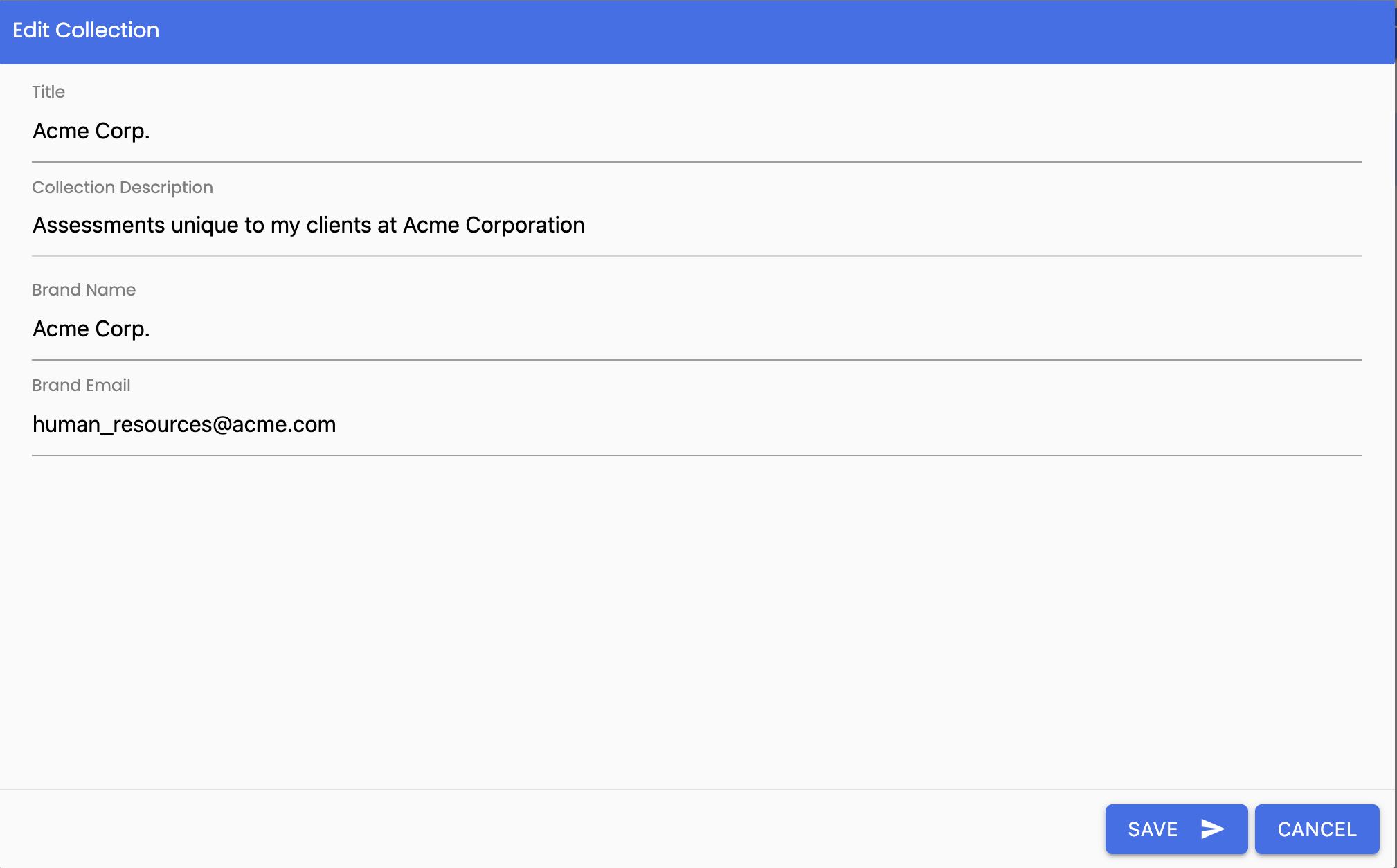
In addition to the Title, you can also enter these details for each collection:
- Collection Description: a text description to help you remember why the collection was created
- Brand Name: specify the brand name for the “From” field in Results email messages for the assessments in each collection.
- Brand Email: specify the brand email address for the “Reply-To” field in Results email messages for the assessments in each collection.
Click the “Save” button to complete the creation of your collection.
Your new collection will show on the list along with the description.
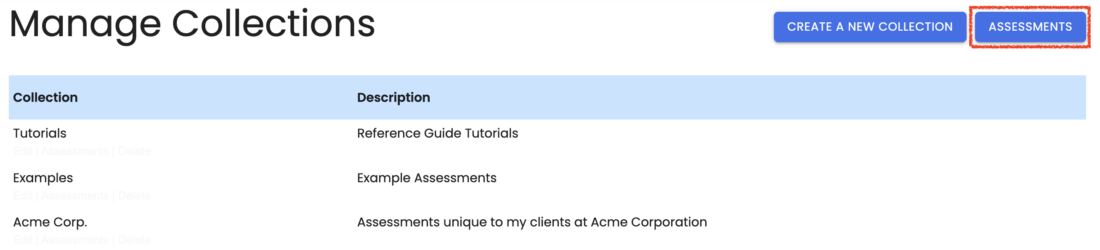
Click the “Assessments” button to return to the Assessment Dashboard.
Dashboard Column Headings #
The following headings are shown at the top of the columns on the Assessment Dashboard.

- Title: Assessment Title (as entered on the “Setup Tab” — see Assessment Setup for details)
- Collection: Assessment Collection (for Professional plans only; as entered on the “Setup Tab” — see Assessment Setup for details)
- Scoring: The scoring model chosen for each assessment. It can be Simple, Multi-type, or 360° (360° Assessments are available for Professional plans only).
- Enabled: An indication of whether the assessment is enabled so that respondents can complete the assessment. It can be Yes or No.
- Modified: Date when the assessment was last modified or completed. The arrow sorts assessments by date.
- Zap: This column indicates whether the assessment has an active integration with an external application through Zapier, so the respondent information is shared with that application upon assessment completion. It can be Yes or No.
List of Assessments #
Below the headings is the list of assessments in your account, with the most recently edited assessment at the top.

Several complementary assessment examples are automatically loaded into your account when you first create it. By default, they are disabled, so they do not count against your active assessment limit.
Assessment Menu Options #
When you mouse over each assessment, you’ll see a menu of options underneath.

Here is the list of options available for your assessments:
- Edit: Enter the assessment editor to modify settings for this assessment.
- Share Assessment: Go to the Share Assessment page for this assessment.
- Duplicate: Make an exact copy of the assessment.
- Test Assessment: Test your assessment to view operation on a desktop or laptop.
- Test Mobile: Test your assessment to view operation on a mobile device.
- Responses: View the Responses Page for this assessment.
- Delete: Completely remove the assessment from your account. Confirmation required. This command cannot be undone.
Please review the rest of the Reference Guide to learn more about our software.
Thank you for choosing Agolix!