

What is a Merge Code? #
A Merge Code is a placeholder used to insert dynamic content.
- For example, when creating your report in Agolix, you can use the ###DATE### merge code to insert the assessment completion date.
Important Note: Case Sensitivity #
Merge codes are case sensitive. Remember to be consistent throughout the assessment and results if you use all Capital letters.
Available Merge Codes #
When sending assessment results to your respondents, it’s nice to add a personal touch. You can use merge codes to address your respondents by name and include their scores.
Here is a list of all the merge codes available with Agolix:
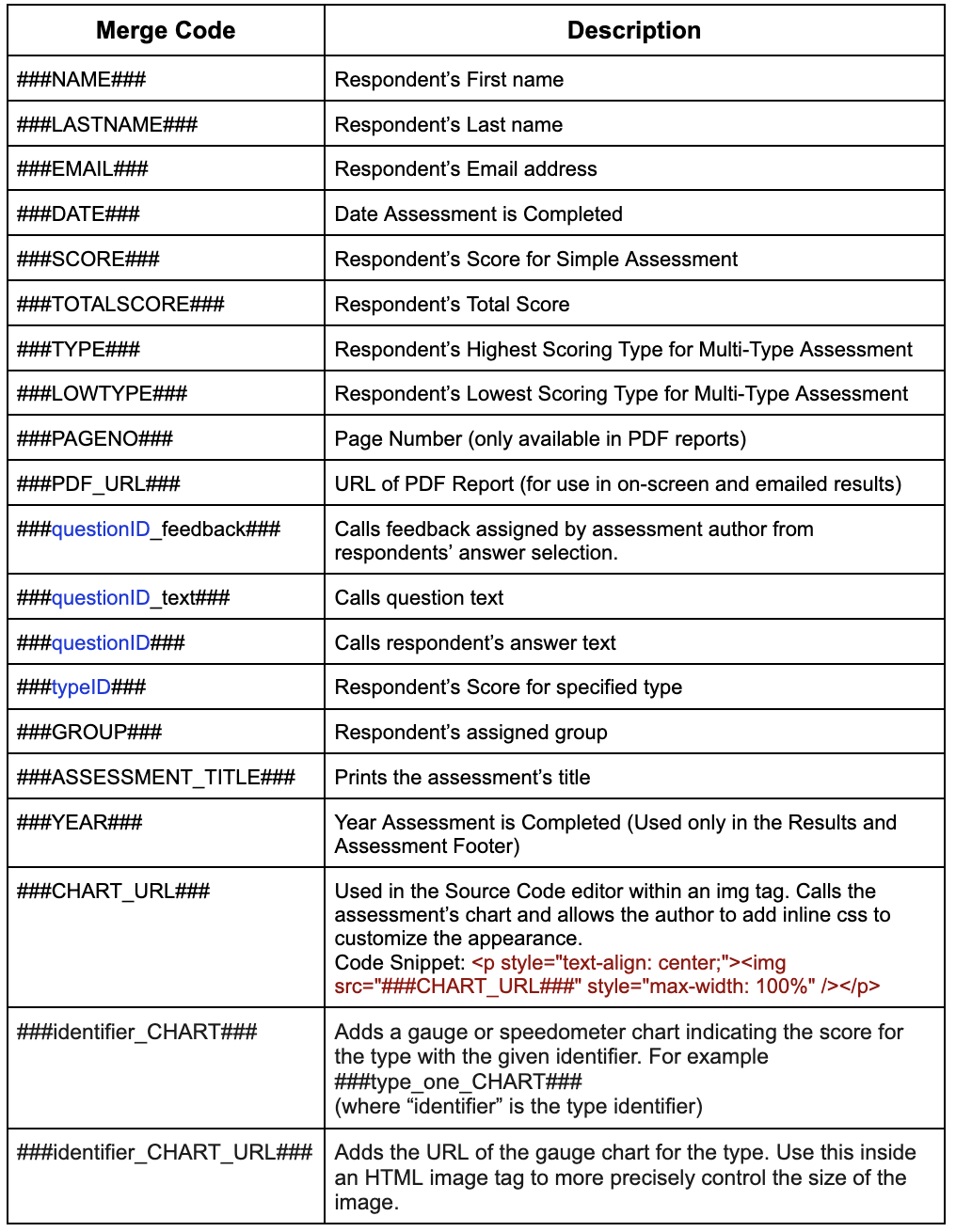
*The questionID and typeID values are unique identifiers that you define for each question and type in your assessment.
Example: your assessment may have a question “Do you enjoy reading?” Here, reading could be the questionID. If you have a Multi-type assessment and you have 3 Types: Athlete, Scholar, Artist; Athlete could be the typeID.
Remember, when you create a merge code for a type or a question, you don’t include the ### delimiters. Use the merge code with the delimiters when you want to reference the merge code in the report.
PDF URL as a Merge Code #
This merge code is replaced with the URL of the respondent’s PDF report. Use it in a hyperlink in your emailed or on-screen results by selecting the desired text and clicking the “Link” button:
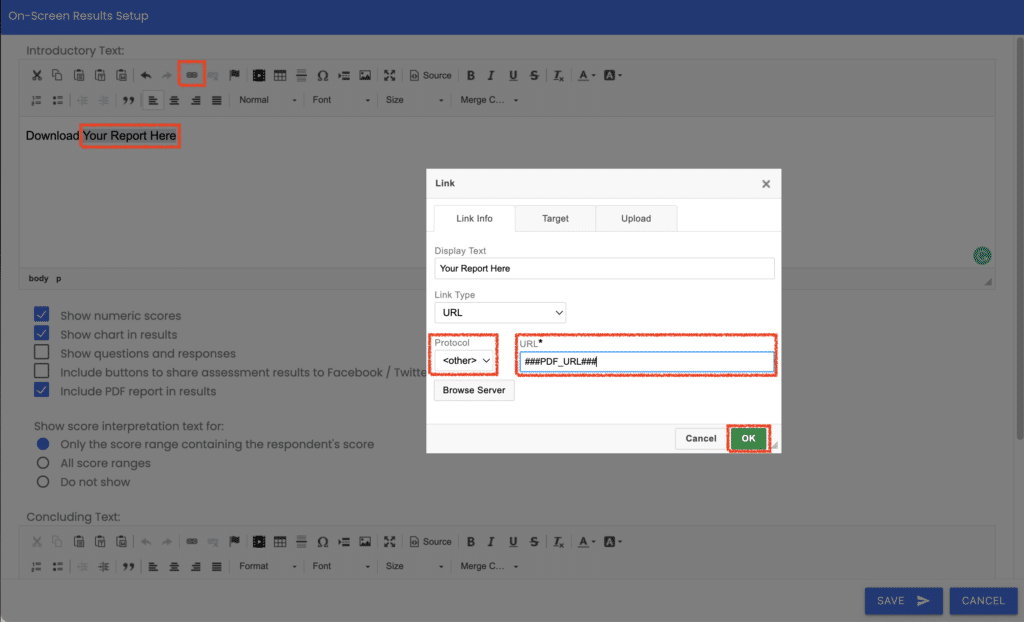
In the popup window, select “Other” for Protocol and enter ‘###PDF_URL###’ for the merge code. Click “OK” and then “Save” in the “Results” editor.
Question Identifiers as Merge Codes #
You can also use a question identifier to create a merge code.
This identifier is created when you add a new question to your assessment, enabling you to reference the answer to that question in the assessment results.
Add ### before and after your identifier to use it as a merge code.
For example, if you set your identifier to be “respondent_age,” you would use the merge code ###respondent_age###.

Then, in the assessment results, you could reference that answer like this in an editor window:
You’ve indicated that you are currently ###respondent_age### years old.
The assessment results would then show the answer like this:
You’ve indicated that you are currently 39 years old.
Include Merge Codes in Assessment Results #
Add merge codes to the Assessment Results Editors, found in the “Results” Tab.
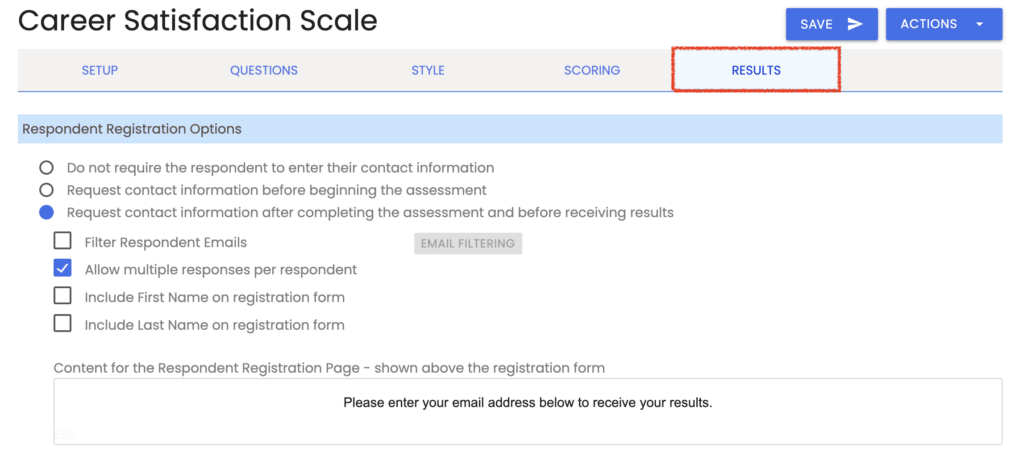
Scroll down to the “How Respondents Receive Their Results” section to find “Results Editors”:
- “Edit On-Screen Results”
- “Edit Emailed Results”
- “Edit PDF Results”
- “Edit Alert Email”
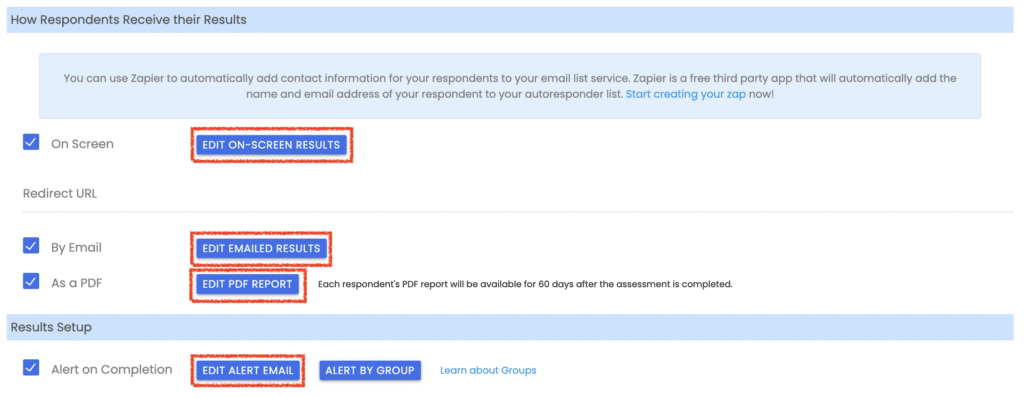
Click on any of these buttons to open the “Results” editor windows and enter merge codes.
Merge Code in Email Greeting #
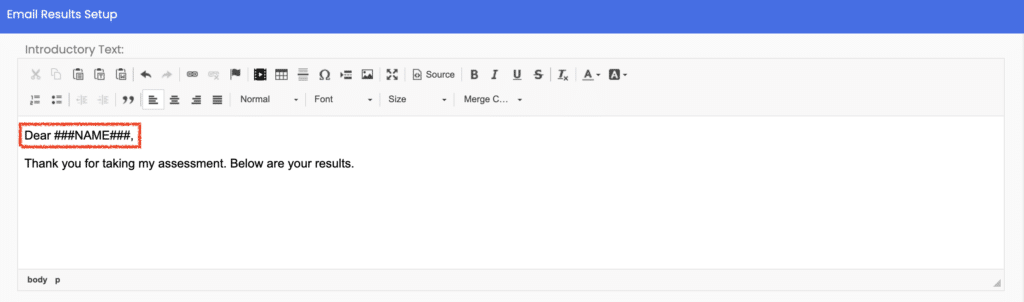
For example, when you click on “Edit Emailed Results,” you can add Dear ###NAME### to your greeting in the header field:
Include Merge Codes in Social Media Posts #
You can also use merge codes in your “Social Media” settings (under the “Setup” tab), so your respondent can share their score or type with their friends:

Please review the rest of the Reference Guide to learn more about our software.
Thank you for choosing Agolix!