

This guide shows how to add 360° subjects and evaluators from within your account. The other approach is to send your subjects an intake form and have them enter their own evaluators. To learn more about that approach, click here.
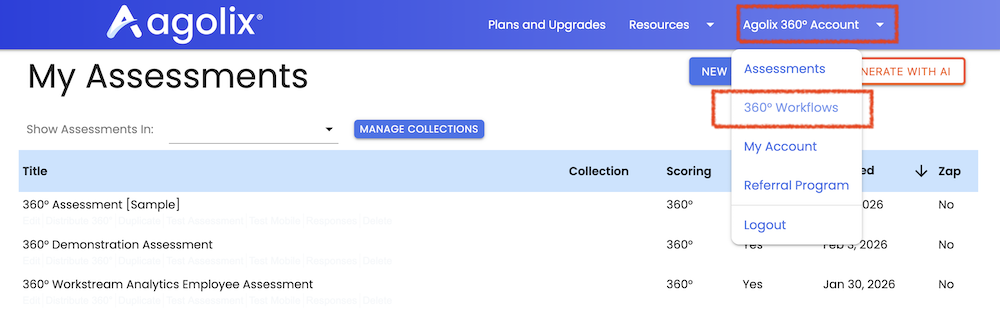
You’ll need to have a 360° Workflow set up before you can add subjects. Click here for that guide. When you log into your Agolix account, click your name in the upper right corner of the page and select 360° Workflows:
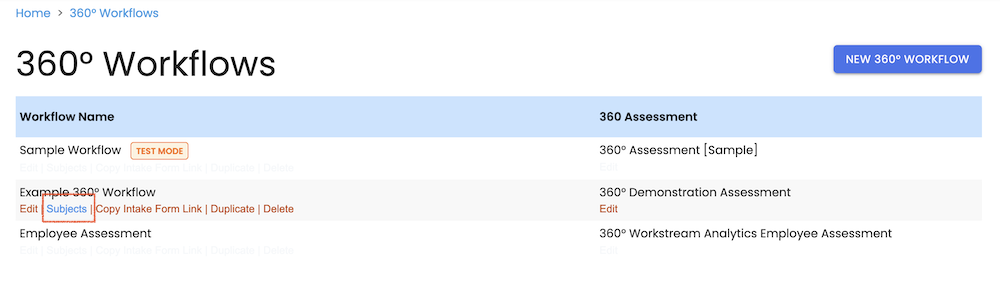
Next, find the 360° workflow you’d like to use and click Subjects:
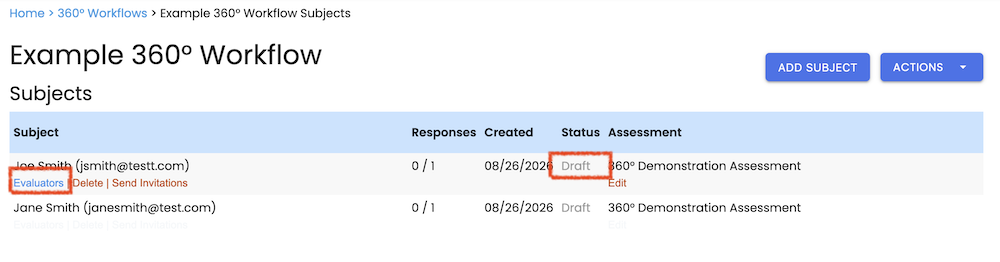
To add subjects, click the Add Subject button on the right side of the Subjects list. This will bring up a popup where you can either type or paste in the names and email addresses of your subjects. If you’re entering them by hand, add one subject per line with names and email addresses separated by a comma, like this:
Joe Smith, jsmith@testt.com
Jane Smith, janesmith@test.com
If you have your subjects name and email addresses in a spreadsheet, you can copy and paste directly from the spreadsheet as long as the name and email address is the only data being copied. When you paste data it won’t have the comma, but the system will recognize it. You can enter up to 30 subjects at a time. Click “Import” at the bottom of the window.
After your subjects are imported, they’re in “Draft” status. That means that no invitation emails have been sent, and no reminders will be sent. Next, click Evaluators to add evaluators for your subject:
You’ll see that your subject is listed on the evaluators page with a role of “Self.”
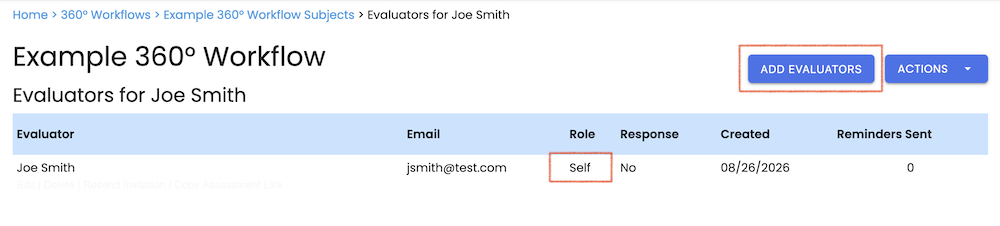
Click “Add Evaluators” to add other evaluators. Adding evaluators works the same as adding subjects, except that you’ll also need to select a role for each batch of evaluators. Available rows are drawn from your workflow; if you’d like to add or remove roles you can edit your workflow.
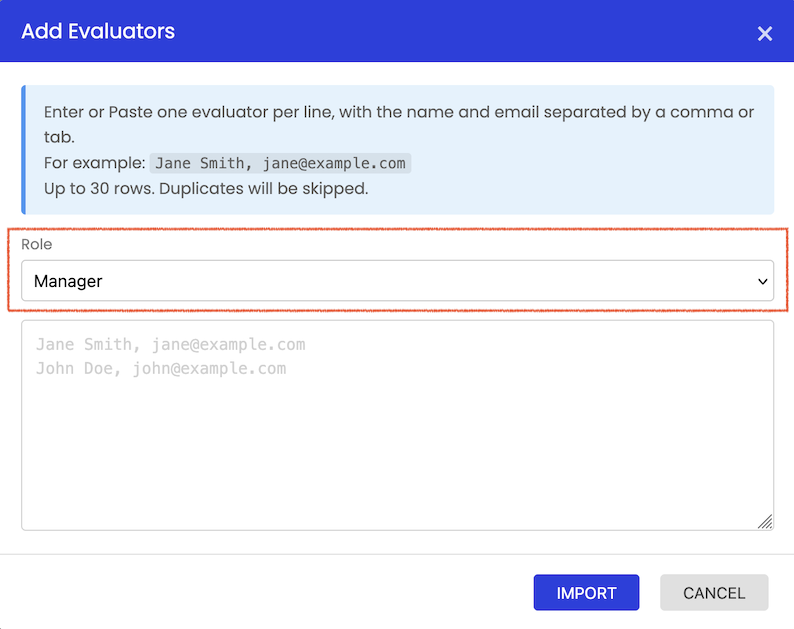
All evaluators entered here will be assigned to the selected workflow. If you have more than one workflow, upload or enter them in batches.
After all of your evaluators have been entered, go back to the Subjects list by clicking in the breadcrumbs menu:
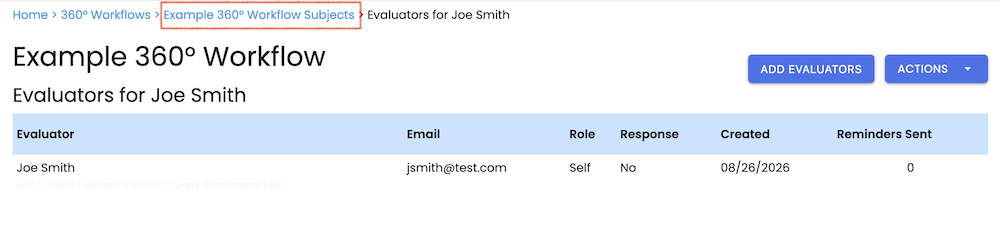
As before, the new subject is in Draft status which means no invitations or reminders have been sent. To kick off the 360° process for this subject, click “Send Invitations”
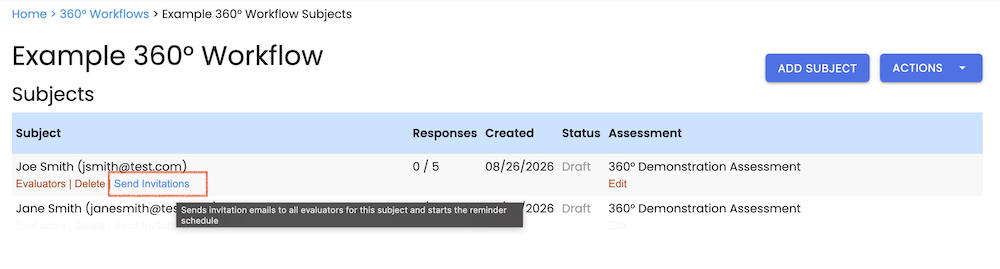
Clicking Send Invitations will:
- Set the Subject to “Active” status
- Send invitation emails to the subject and all evaluators. Each email contains a link to complete the evaluation.
- Begin the reminder sequence. Evaluators will receive periodic reminders as defined in the workflow.
If you’ve created many draft subjects, you can click Actions -> Send All Pending Invitations. This will send invitations to all subjects in Draft status and their evaluators.
This user guide has more information on monitoring 360 progress.