

AI Assessment Generator Overview #
Agolix® now includes an AI-powered feature that makes building assessments faster, easier, and more flexible than ever.
With the AI-Powered Assessment Generator®, you can create a complete, customizable Simple or Multi-Type assessment by starting with a simple prompt. Describe what you want your assessment to do, who it’s for, and what kind of insights you’re looking to gather — no manual question-building required.
The AI generates a structured draft based on your input. You can be as specific as you like: define the purpose, request particular question types, set the tone and focus, and even include brand colors and logo files to apply your branding from the start.
Getting Started #
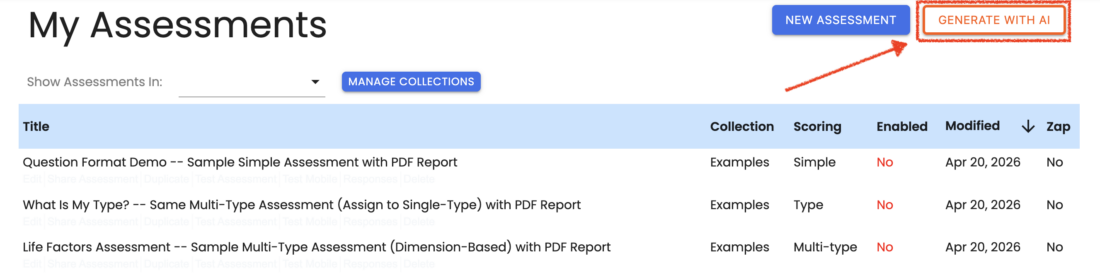
Click the “Generate With AI” button in the upper-right corner of your account dashboard.
Responding to Prompts #
A modal window will open with a set of questions about your assessment goals.
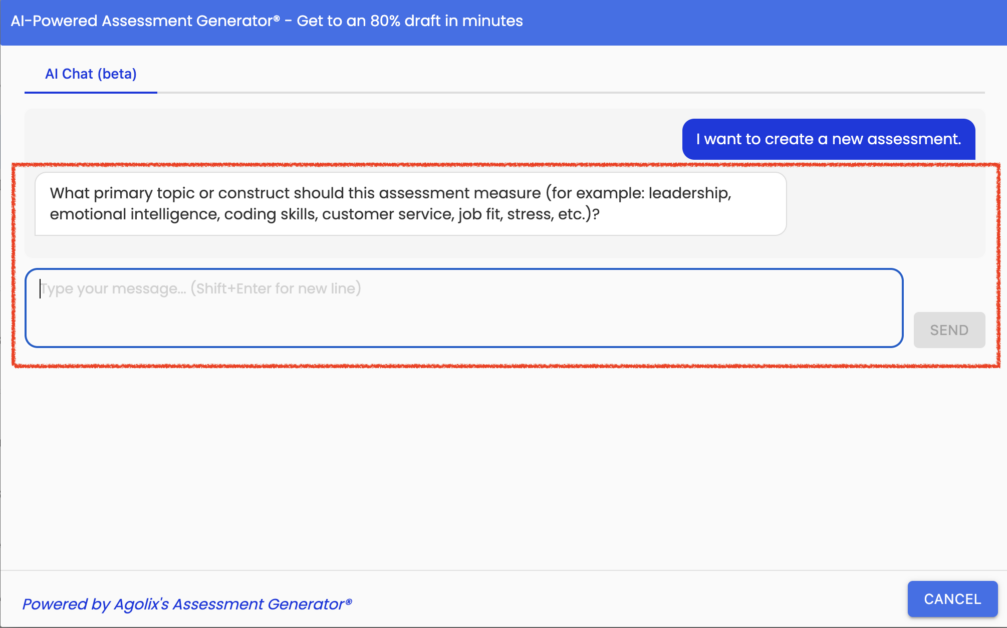
Answer each as specifically as you can:
- Assessment Topic — e.g., leadership skills, customer service readiness, job fit, emotional resilience
- Target Audience — e.g., employees, students, general public, clinical clients
- Primary Purpose — e.g., development (self-awareness/coaching), selection/hiring, benchmarking, compliance, or self-assessment
- Industry Focus — e.g., corporate, healthcare, education, non-profit, or cross-industry
- Scoring Structure — multiple scoring categories (types) or a single overall score; if multiple, list your categories or use the suggested set
- Number of Questions
- Question Format — scale, multiple choice, narrative, or a mix
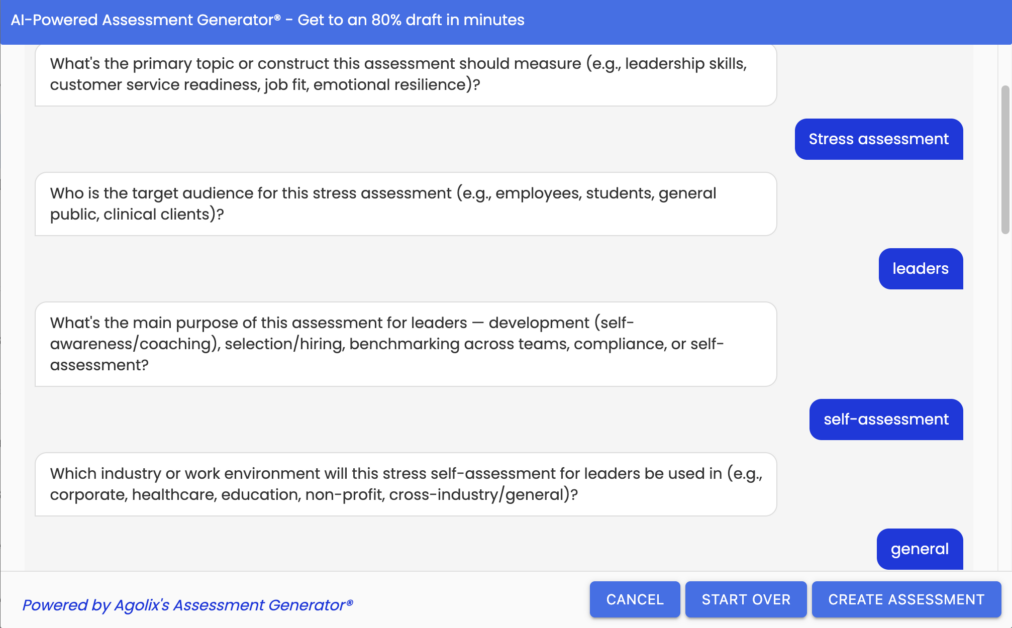
Once you’ve provided your input, the Assessment Generator will begin building your assessment. Simple assessments complete quickly; longer or more complex ones may take a few minutes.
Add Branding (optional) #
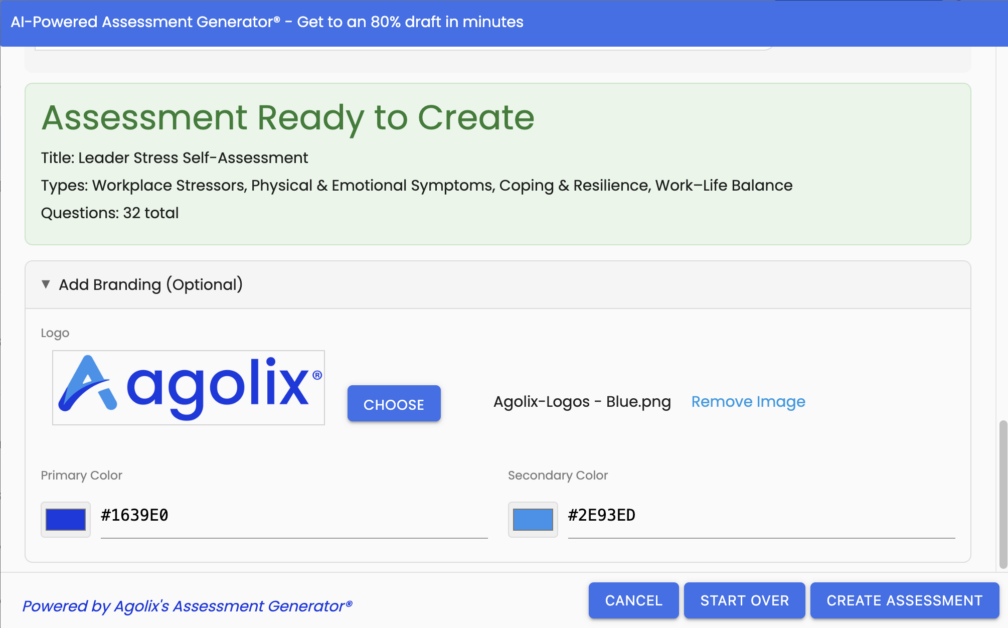
You’ll have the option to add your logo and brand colors before generating your assessment.
Create Assessment #
When you’re ready, click “Create Assessment.” The AI will generate a new assessment in the Agolix editor — complete with questions, scoring, on-screen results, emailed results, email alerts, and a PDF report.
To start fresh, click “Start Over” to reset your inputs, or “Cancel” to exit without saving.
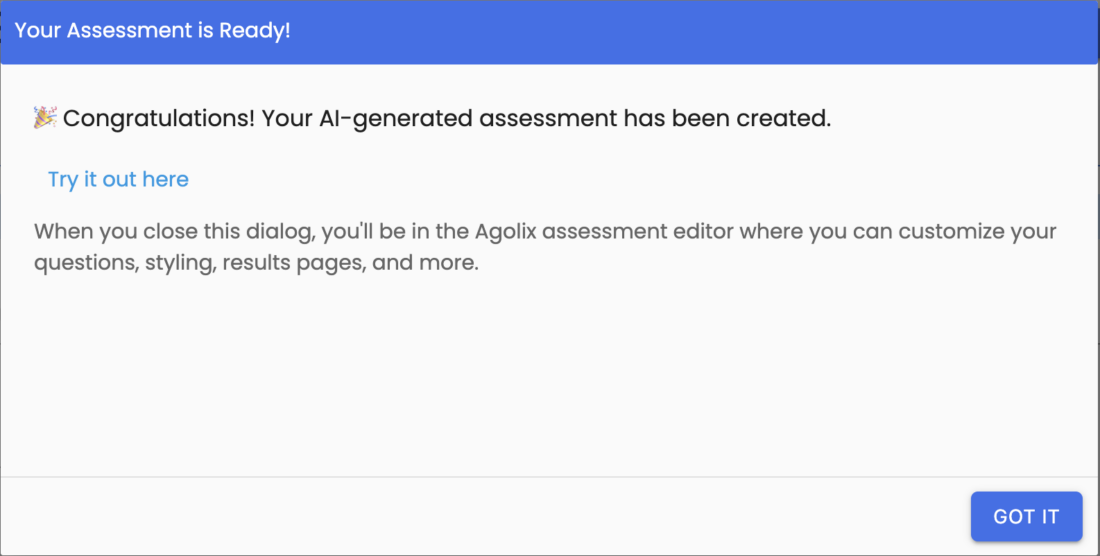
Once the assessment is created, a confirmation window will appear with two options:
“Got It” — Go directly to the Agolix editor
“Try it out here” — Preview your assessment immediately to spot anything you’d like to adjust
Edit Assessment #
Use the tabs at the top of the editor to update each section:

- Setup — Title, header, footer, enable/disable assessment, progress bar, landing page
- Questions — Edit questions and scoring category assignments
- Types (if using multiple scoring categories) — Edit categories, descriptions, score bands, and score-based feedback
- Scoring (if using a single overall score) — Edit score bands and score-based feedback
- Style — Fonts, colors, layout, and customize text elements
- Results — Registration options, privacy & security, on-screen messaging, email messaging, PDF report, completion alerts
- Report — Edit the PDF report
From the Actions Menu, you can:
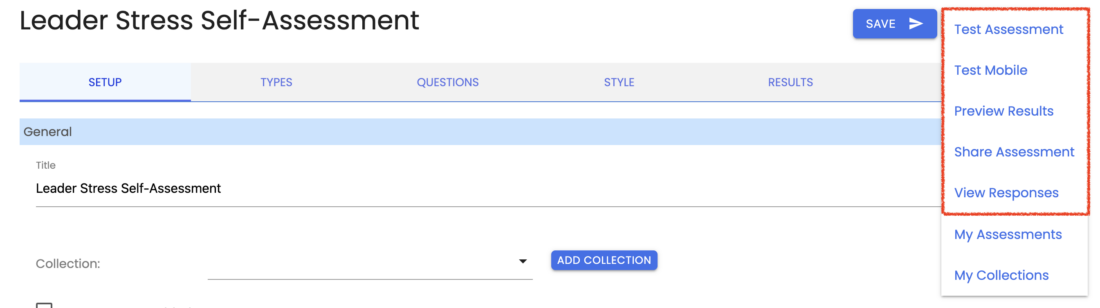
- Test Assessment — View and test your assessment
- Test Mobile — Preview on a simulated mobile device
- Preview Results — Preview results in your browser
- Share Assessment — Update sharing settings, copy URL or QR code
- View Responses — Access responses and analytics
Please review the rest of the Reference Guide to learn more about our software.
Thank you for choosing Agolix!