

Video Guides #
Quick Tour of the Agolix Dashboard #

Quick Tour of the Agolix Dashboard
(Video link opens in a new browser tab)
Create Your First Engaging Assessment #
Create Your First Engaging Assessment
(Video link opens in a new browser tab)
Assessment Quick Start #
This tutorial helps you get up and running with your first assessment. We’ll usually stick with the default settings to keep it simple. Let’s get started!
Looking to get started even faster? The AI-Powered Assessment Generator can build a complete Simple or Multi-Type assessment for you from a simple prompt — including questions, scoring, results, and a PDF report. If you’d prefer to build your assessment manually, continue below.
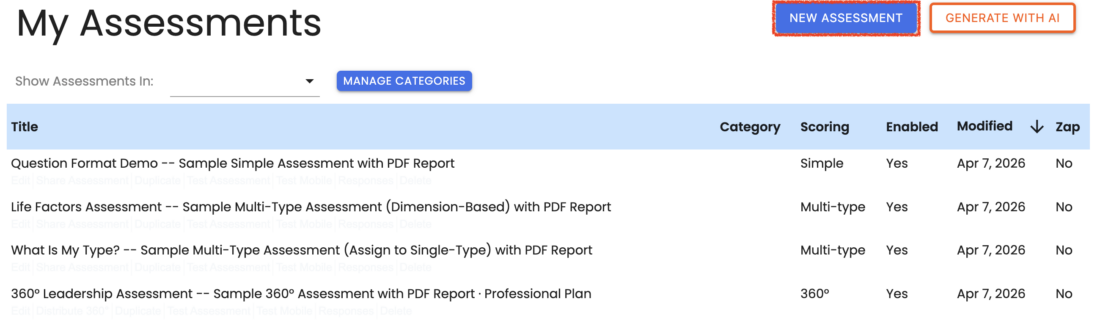
When you first log into your new account you will see your assessment dashboard and the 3 Example assessments listed.
Let’s create a New Assessment!
Click “New Assessment” at the top of the page:
Select Your Scoring Model #
A box pops up on your screen to ask whether you want to create a Simple or Multi-Type assessment.

Simple Assessments #
A Simple Assessment provides a score based on a respondent’s answers. That’s something like a school test, but without any right and wrong answers.
For example, an assessment can ask, “How likely would you enjoy a visit to the UK?” and answer out of 100%. You can set the range of scores from 1 to 100 or any other number. And you can provide custom feedback depending on the respondent’s score, such as: “Your score of 89% shows you would very likely enjoy visiting the UK.”
You can click “Simple” in the “Create Assessment” dialog if this sounds like what you need.
If not, keep reading to find out about Multi-Type assessments.
Multi-Type Assessments #
A Multi-Type Assessment is a flexible scoring model that supports two approaches:
Dimension-based scoring rates a respondent across several categories — like a report card that gives you grades or scores in several subjects. For example, you can give the respondent a score in each category along with custom feedback: “You scored High on interest in sciences. That means you will likely be very motivated if you major in science…”
Single-type assignment assigns a respondent to one category based on their answers — like the Sorting Hat in Harry Potter that assigns each new student to one of the four houses in the school. For example, an assessment can ask, “Are you more of a Pub Person or a Museum Person?” You can assign the respondent to the type where they score highest and give them a description of that type, such as: “You are a Pub Person who enjoys a lively time out with friends.”
To create a Multi-type assessment, click “Multi-Type” in the “Create Assessment” dialog.
First Look at the Assessment Editor #
After choosing your assessment format, you’ll be in the Agolix editor. There you will see five tabs across the top where you set up your assessment.
For example, this is the view you will see if you choose a Simple assessment:
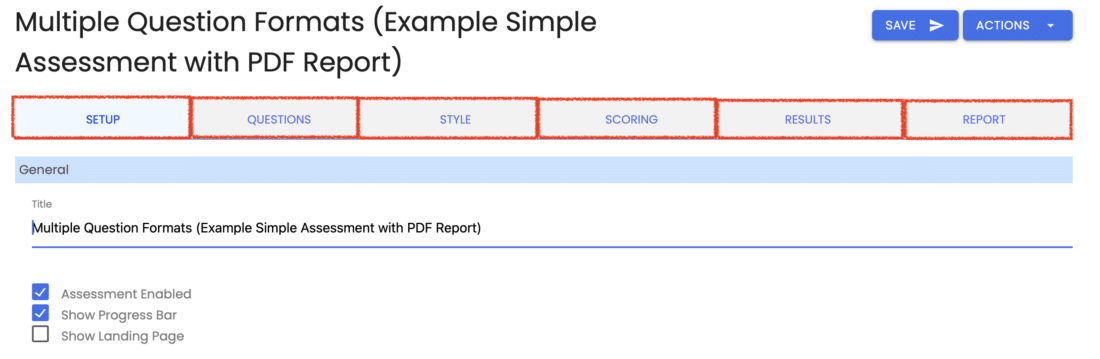
With Multi-Type assessments, you’ll see a “Types” tab instead of a “Scoring” tab.
We recommend reviewing these tabs from left to right when building your assessment.
Please review the rest of the Reference Guide to learn more about our software.
Thank you for choosing Agolix!
Continue to Quick Start: Assessment Set-Up ->