

- What is a Text Entry Question?
- Create a Text Entry Question
- Enter Your Question
- Choose a Display Style
- Select Method of Validation (Short Form only)
- Enter a Field Prompt (Short Form only)
- Set a Maximum Response Length
- Assign Question to Section
- Assign a Question Identifier
- Question Required Setting
- Question Enabled Setting
- Show on Registration Page
- Don't Show in Results and Report
- Show Question When (for Conditional Logic)
- Optional Question Notes Field
- Save Your Question
What is a Text Entry Question? #
A Text Entry Question collects a free-form response from respondents.
- Text Entry questions are not scored and cannot be assigned points, but can be assigned to types for reporting purposes.
- They are used to collect qualitative, demographic, or contact information from respondents.
- Can be used in a 360° assessment to gather detailed, qualitative feedback.
- You can choose how the response field is displayed: as a Long Form text area or a Short Form single line.
- Short Form questions can optionally require the response to match a specific format, such as an email address, date, or phone number.
Create a Text Entry Question #
Start by entering the Agolix editor.
First, select the “Edit” link in the menu underneath your assessment.

Then click on the “Questions” tab at the top of the page.
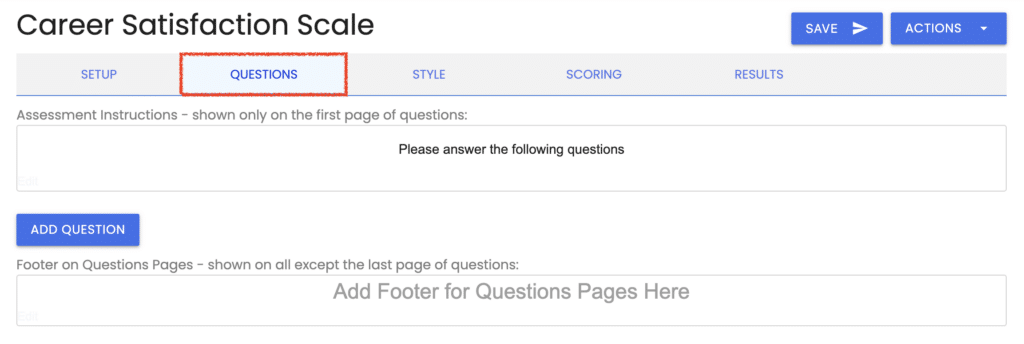
Click the “Add Question” button.
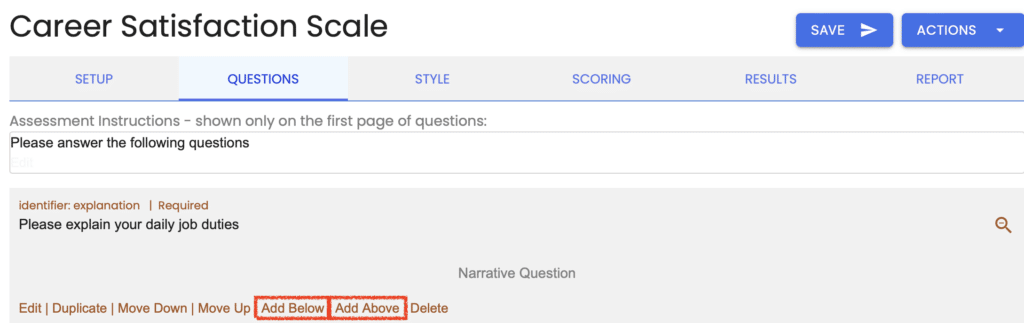

Alternatively, you can mouse over any existing questions and choose either the “Add Above” or “Add Below” links. These links will add your new question either above or below your existing question.
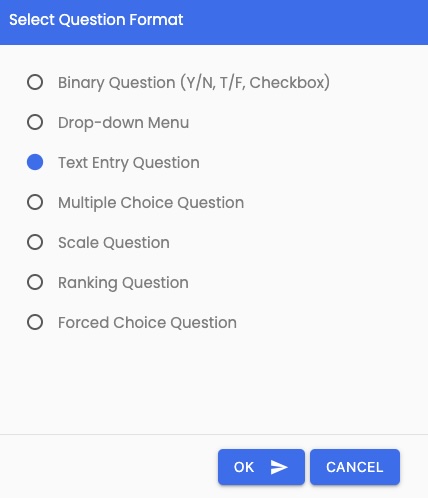
Select “Text Entry Question” from the list of choices and click “OK.”
Enter Your Question #
Enter your question in the editor window and adjust the styling as desired.
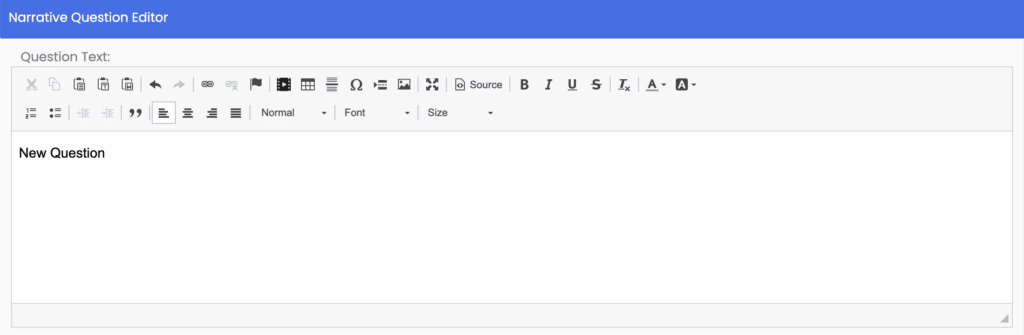
You can also include an image, video, symbols, and tables with your text.
Choose a Display Style #
Next, select how the response field will be displayed using the “Display As” setting.

Long Form (text area) displays a multi-line text box. Use this style when you want respondents to provide a detailed written response, such as open-ended feedback or qualitative answers.
Short Form (single line) displays a single input line. Use this style for brief responses such as a name, age, email address, or phone number. Short Form also supports optional validation (see below).
The fields that follow will vary depending on which display style you select.
Select Method of Validation (Short Form only) #
When Short Form is selected, you can optionally require the response to match a specific format using the “Select method of validation” dropdown.
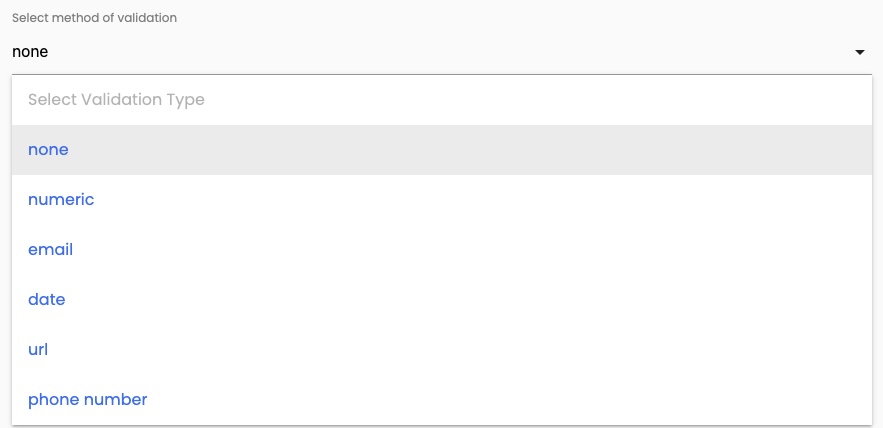
The available validation types are:
None — No validation is applied. The respondent can type any text. This is the default setting.
Numeric — The response must be a number. Use this for questions such as age, years of experience, or other quantities.
Email — The response must include an “@” symbol to be accepted.
Date — The response must conform to a date format. Note: validation capability varies by browser. Chrome, Firefox, and Opera prompt the respondent to use the expected date format; Safari currently allows any free-form text.
URL — The response must begin with HTTP:// or HTTPS:// to be accepted.
Phone Number — The response may include numbers 0–9, +, –, and/or parentheses () to be accepted.
Please note that only the format of the answer is validated. Agolix cannot verify that the email address, date, URL, or phone number provided is accurate.
For other validation needs — such as postal/zip codes in a specific format — contact us to explore custom options.
Enter a Field Prompt (Short Form only) #
When Short Form is selected, you can enter an optional field prompt.

The field prompt appears on the response line to cue respondents about what to enter. For example, if your question is “What is your current age (in years)?” your field prompt might be the word age.

Jennifer SparksJenEdit Profile
If no field prompt is entered, a blank line will be presented to the respondent.
Set a Maximum Response Length #
You can set a limit on the number of characters a respondent can type in their answer. This field is labeled “Maximum Response Length (characters).”

The character count includes letters, numbers, symbols, and spaces. Leave this field blank for no limit.
This field is available:
- Always for Long Form
- For Short Form only when the validation method is set to “None”
Assign Question to Section #
In the “Setup” tab, you can configure your assessment to display your questions by Section. If you’ve done so, you’ll see a setting here to assign your question to one of your sections.

Please note that Sections control how questions are separated visually during the assessment. *Sections do NOT affect scoring.
- For Multi-Type Assessment: To set up types or categories for scoring, create types on the “Types” tab. Learn more about types.
- For Simple Assessment: If you need to create multiple categories or types and provide a separate score for each, please create a Multi-Type assessment.
- We can help you convert your Simple assessment into a Multi-Type one (or vice versa). Please contact us for assistance.
Assign a Question Identifier #
This optional field enables you to reference the answer to a question.

This field can display a respondent’s answer in the assessment results by invoking it as a merge code.
You can also use the question identifier to pass the answer through a webhook or Zapier integration to an outside application.
Question Required Setting #
Scroll down to see where you can require the respondent to answer the question.

If this box is unchecked, this question is optional, and the respondent can proceed to the next question without answering it.
Question Enabled Setting #
Next is the “Question Enabled” setting. Each question that you create will be enabled by default. You can disable individual questions in your assessment by unchecking this box.

Disabled questions will not be presented in your assessment.
Show on Registration Page #
Check this box when you want this question to appear on the assessment’s registration page.

💡 Pro Tip: To make a Text Entry field match the style of the name and email address fields on the registration page, leave the Question field blank and enter a suitable prompt in the Field Prompt instead — for example, “Company Name” or “Phone Number.”
Don’t Show in Results and Report #
Check this box if you do not want this question and its response to appear in the on-screen results, emailed results, or PDF report.

This setting is useful for questions that are used for demographic or conditional logic purposes only.
Show Question When (for Conditional Logic) #
With Advanced, Private Label, and Professional plans, the “Show Question When” field is shown:

By default, this option is off so your question will always be shown when the Question Enabled setting above is enabled.
Please see Add Conditional Logic for details on how to use this feature.
Optional Question Notes Field #
Finally, there’s an additional text window where you can add notes that will appear below the question in your assessment.
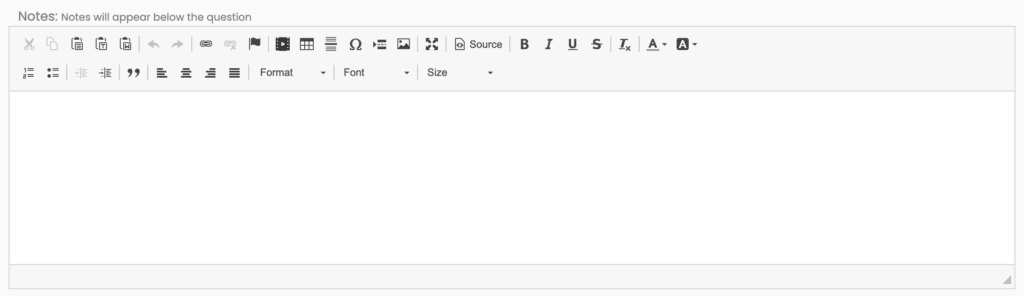
You can also present your “Question Notes” with assessment results when you enable the “Show questions and responses” setting for the “Edit On-Screen Results,” “Edit Emailed Results,” and “Edit PDF Report“ settings on the “Results” tab.
Save Your Question #
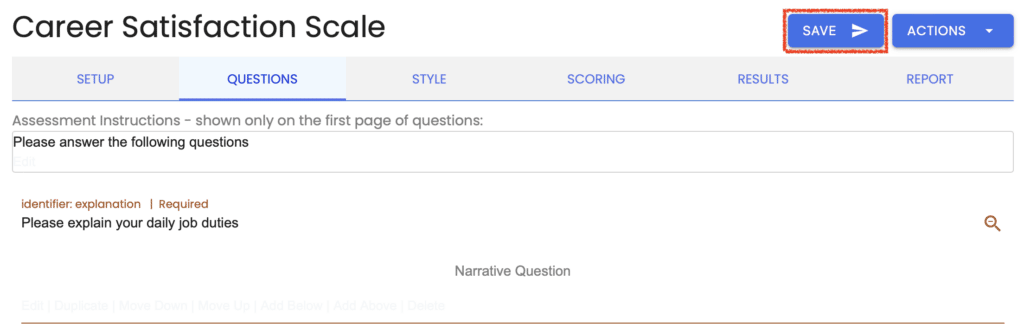
When you click the “Save” button to store your question settings, you are returned to the “Questions” tab, where you can see your recently-added question.
Please review the rest of the Reference Guide to learn more about our software.
Thank you for choosing Agolix!