

AI Assessment Generator Overview #
Agolix® now includes an AI-powered feature that makes building 360° assessments faster and easier than ever.
With the AI-Powered Assessment Generator®, you can create a complete, customizable 360° assessment by starting with a simple prompt. Describe the competencies you want to evaluate, who the subjects are, and what evaluator roles you’d like to include — no manual question-building required.
The AI generates a structured draft based on your input, including questions with optional alternate wording for self-evaluations, evaluation categories (Types), score-based feedback, and a PDF report. You can be as specific as you like: define the focus areas, request particular question formats, and even include brand colors and a logo file to apply your branding from the start.
Getting Started #
Click the “Generate With AI” button in the upper-right corner of your account dashboard.
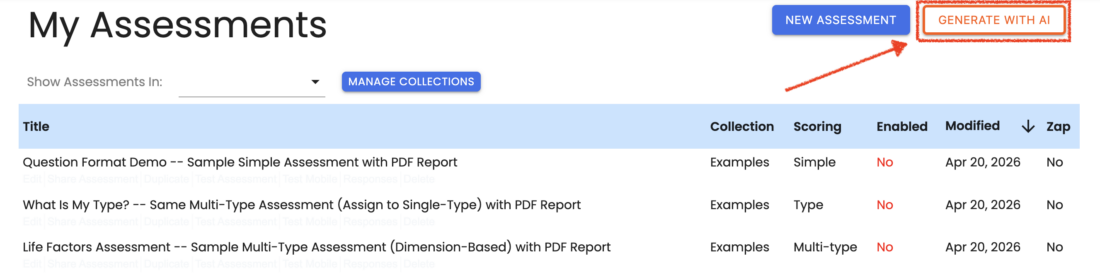
A modal window will open and the AI will greet you with an opening prompt. When it does, let it know that you’d like to create a 360° assessment.
Responding to Prompts #
A modal window will open with a set of questions about your 360° assessment goals.
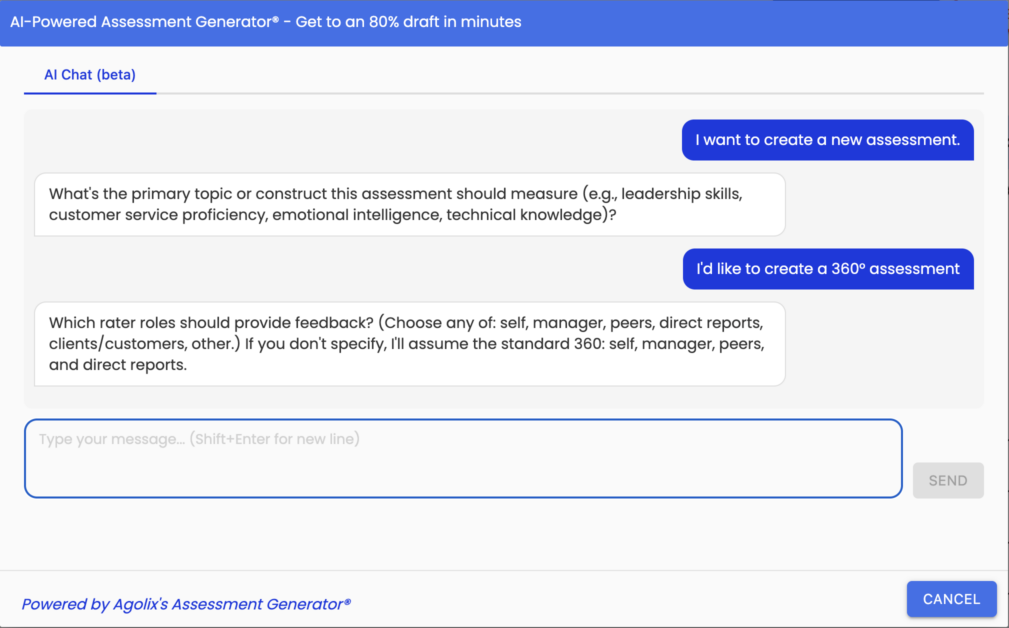
Answer each as specifically as you can:
- Rater/Evaluator Roles — e.g., Peer, Supervisor, Direct Report, Self; list all roles you’d like included
- Assessment Topic — e.g., leadership effectiveness, communication skills, team collaboration, management competencies
- Target Audience (Subjects) — e.g., managers, team leads, employees under review
- Primary Purpose — e.g., development, selection, coaching, benchmarking, compliance, self-assessment
- Competency Categories (Types) — e.g., Communication, Decision-Making, Emotional Intelligence; list your categories or use the suggested set
- Industry/Work Environment — e.g., technology, healthcare, finance, non-profit, general corporate
- Number of Questions per category
- Question Format — scale, multiple choice, narrative, or a mix
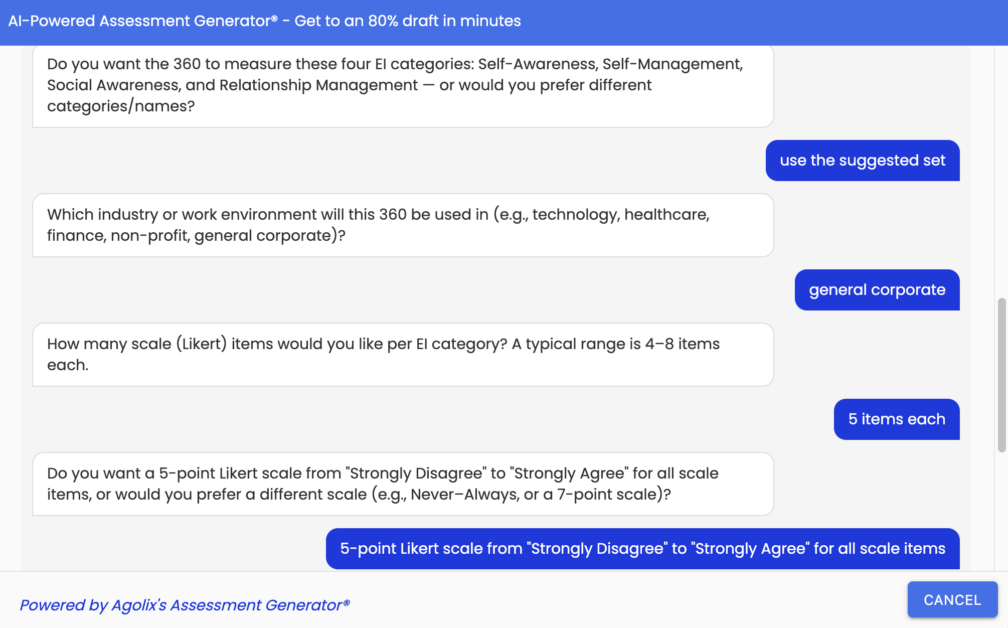
Once you’ve provided your input, the Assessment Generator will begin building your 360° assessment. Shorter assessments complete quickly; longer or more complex ones may take a few minutes.
Add Branding (optional) #
You’ll have the option to add your logo and brand colors before generating your assessment.
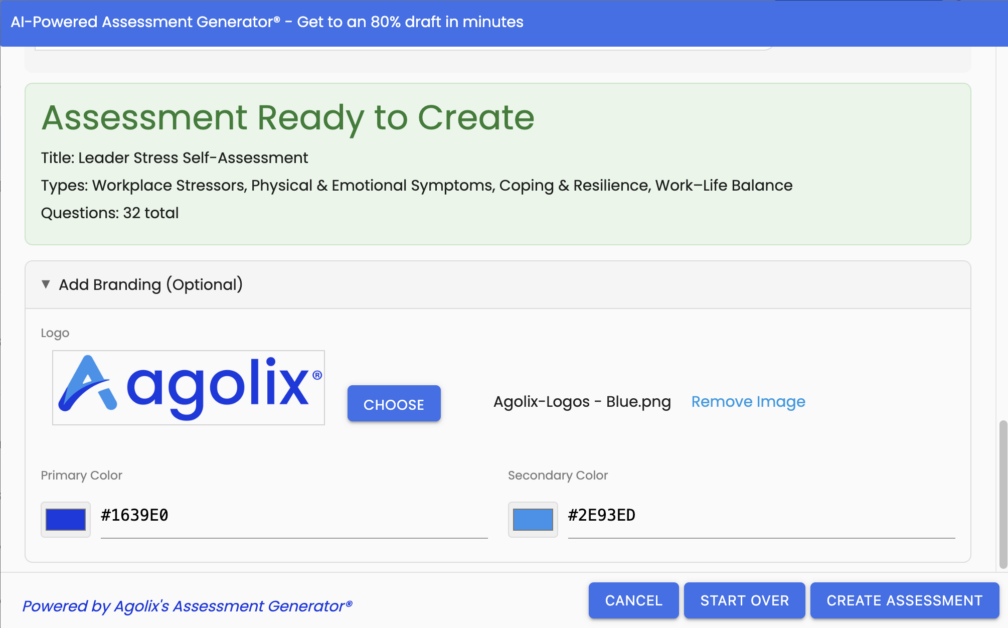
Create Assessment #
When you’re ready, click “Create Assessment.” The AI will generate a new 360° assessment in the Agolix editor — complete with questions (including self-evaluation alternate wording), evaluation categories, score-based feedback, evaluator notifications, and a PDF report. It will also create a 360° Workflow to use with your 360° Assessment.
To start fresh, click “Start Over” to reset your inputs, or “Cancel” to exit without saving.
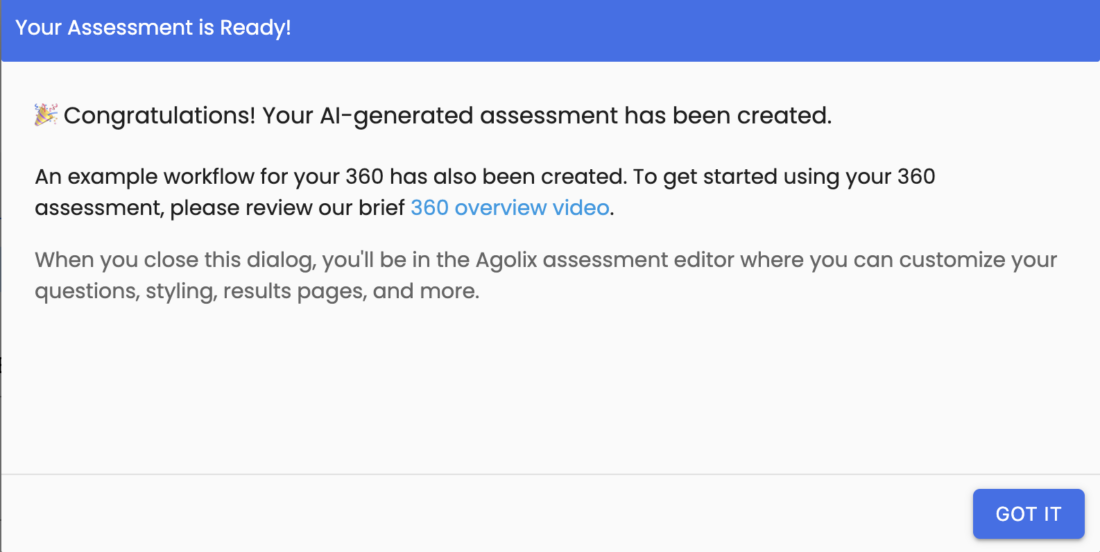
Once the assessment is created, a confirmation window will appear. Click “Got It” to go directly to the Agolix editor to review and refine your AI-generated assessment and workflow.
Next Steps #
Once your 360° assessment is built, you’re ready to move through the rest of the 360° Assessment Lifecycle:
- Build Your 360° Workflow — Review and customize your AI-generated workflow: evaluator roles, invitation and reminder emails, and report delivery settings
- Share Intake Form Link — Send the intake form to your subjects to kick off the process
- Monitor 360° Progress — Track evaluator completions and manage the process
Please review the rest of the Reference Guide to learn more about our software.
Thank you for choosing Agolix!