

What is a Forced Choice Question? #
A forced choice question allows you to present the choices on a 5 point scale and ask the respondent to choose one end of the spectrum or the other. (For use in a Type or Multi-type assessment, not Simple). If they select an option on the left side of the scale, points are awarded to the type assigned to the left side. If they pick an option on the right side of the scale, points are awarded to the type assigned to the right side.
A forced choice question is different from a scale question because a scale question can only be assigned to a single type.
Create a Forced Choice Question #
Start by entering the Agolix editor.
First, select the “Edit” link in the menu underneath your assessment.

Then click on the “Questions” tab at the top of the page.
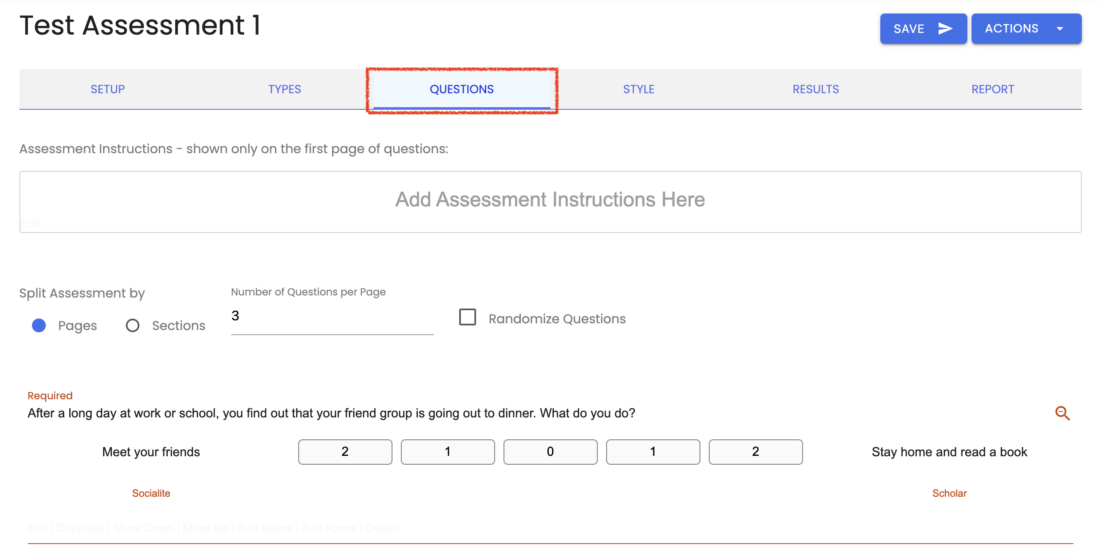
Click on the “Add Question” button at the bottom of your list of questions.
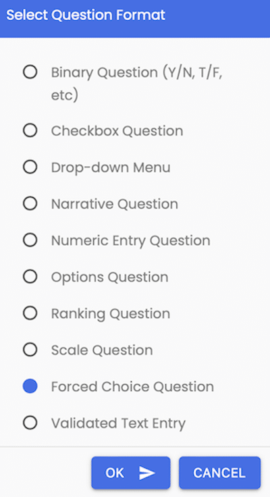
Select “Forced Choice Question” from the list and click “OK“.
Enter your question and set the Scale Labels #
Enter the text of your question. In a forced-choice question, if the respondent picks an option on the left side of the scale, points are awarded to the type set on the left. If they choose an option on the right side of the scale, points are awarded to that type.
In the example shown below, if the respondent selects an option on the left (“Meet your friends”) points will be awarded to the Socialite type. If they pick an option on the right side of the scale, points will be awarded to Scholar. The number of points awarded depends on the number of options. In the example below, the question will have 5 options. Picking the left-most will award 2 points to “Socialite”. Picking the right-most will award 2 points to “Scholar”. Note that in this case there is a neutral option, which will award zero points. If you don’t wish to allow for a neutral option and force the respondent to pick one side or the other, set Number of Options to an even number.
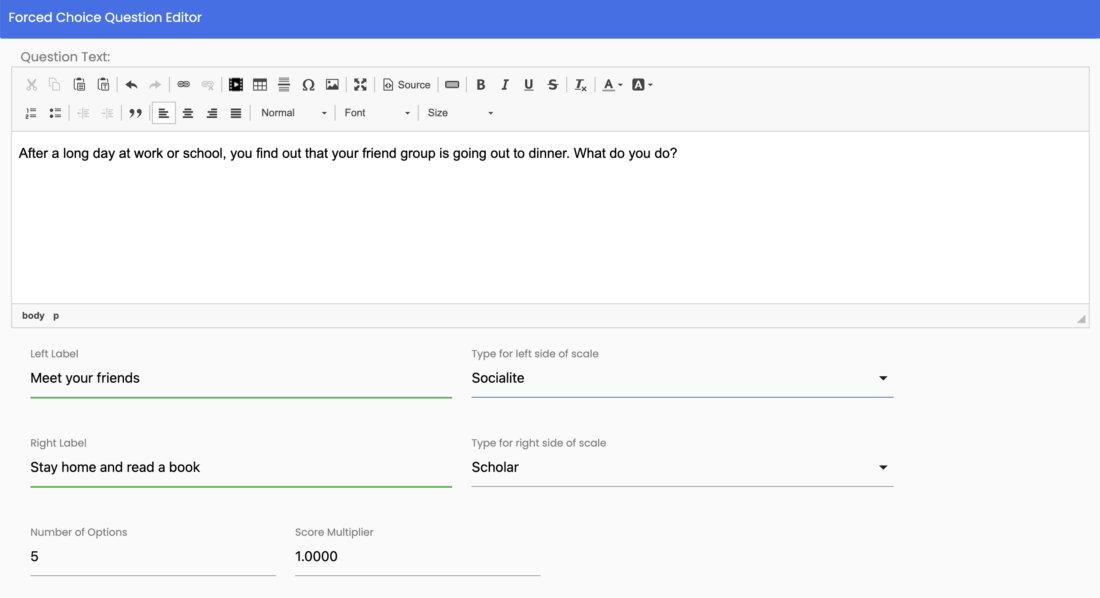
The default labels are “Less” and “More“, but you can set these to whatever makes sense for your question.
Score Multiplier #
With the score multiplier field, you can increase the score’s weight for your question.
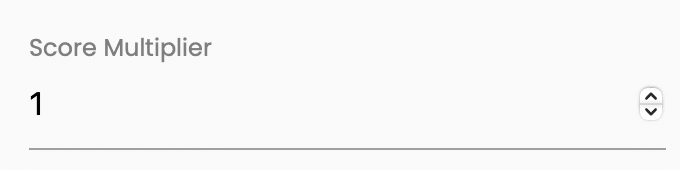
For example, if you’d like to double the point values assigned to your question, you can enter a multiple of “2”.
This means that your respondents would receive double the points that would otherwise be assigned to this question.
Assign Question to Section #
In the Setup Tab, you can configure your assessment to display your questions by Section. If you’ve done so, you’ll see a setting here to assign your questions to one of your sections.

*Please note that Sections control how questions are separated visually during the assessment. Sections do NOT affect scoring.
Assign a Question Identifier #
This optional field enables you to reference the answer to a question.

This field can display a respondent’s answer in the assessment results by invoking a merge code.
You can also use the question Identifier to pass the answer through a webhook or Zapier integration to an outside application.
Question Required Setting #
Check this box if you want to require this question to be answered by your respondents.

*If this box is unchecked, this question is optional and the respondent can proceed to the next question without answering it.
Question Enabled Setting #
Each question that you create will be enabled by default and this box will be checked. You can uncheck this. box to disable individual questions in your assessment

*Disabled questions will not be presented in your assessment.
Optional Question Notes Field #
Here is an Optional Editor window where you can add notes that will appear below the question in your assessment.
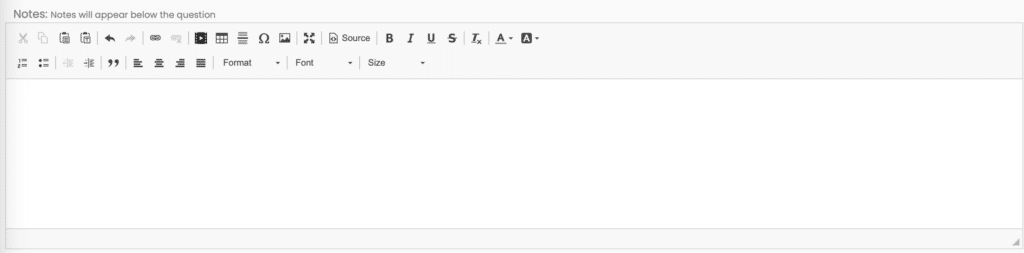
You can also present your “Question Notes” with assessment results when you enable the “Show questions and responses” setting for the “Edit On-Screen Results,” “Edit Emailed Results,” and “Edit PDF Report” settings under the “Results” tab.
Save Your Question #
When you click the “Save” button to store your question settings, you are returned to the “Questions” tab where you can see your recently-added question.
Please review the rest of the Reference Guide to learn more about our software.
Thank you for choosing Agolix!