

Agolix® makes it easy to put your existing work to use. If you’ve already developed assessment questions, scoring categories, score ranges, or result descriptions, you can bring that content directly into the AI-Powered Assessment Generator® — no reformatting required.
This works for both individual assessments and 360° assessments, so whether you’re building a standard scored assessment or a multi-rater feedback tool, you can skip the blank page and let the AI do the heavy lifting.
Here’s what you can bring in and how it works:
What You Can Bring In #
The Generator works with structured content you’ve already created, including:
- Questions and response scales — e.g., Likert scales, yes/no, multiple choice
- Scoring categories or types — e.g., diagnostic categories, personality types, risk levels
- Score ranges and interpretations — e.g., Low / Moderate / High score bands
- Category insights or result descriptions
Open your existing document — whether it’s a Word doc, spreadsheet, PDF, or text file — and copy the content you want to use. You’ll paste it directly into the chat window in the next step.
How It Works #
- Click “Generate With AI” in the upper-right corner of your account dashboard.
- When the modal window opens, type a message telling the AI what you have ready. Be specific about what you’re bringing — for example: “I have questions, types, and score ranges ready for my assessment. Can I add them now?” The more detail you include in your prompt, the more targeted the AI’s guidance will be.
- The AI will respond with formatting guidance. Review its suggestions, then paste your content into the chat window.
- Add your branding (optional) — upload your logo and brand colors before generating.
- Click “Create Assessment.” The AI will build your assessment in the Agolix editor — complete with questions, scoring, on-screen results, emailed results, email alerts, and a PDF report.
Note: If you’re building a 360° assessment, let the AI know that in the same message when you share your content — so it can set up your assessment correctly from the start.
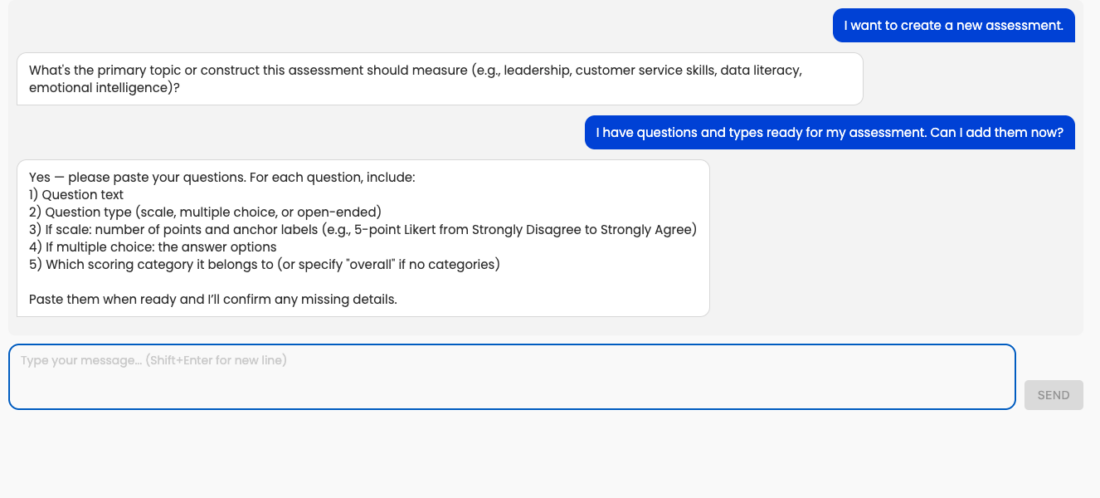
The exchange above shows how to prompt the AI (step 2) and the formatting guidance it returns (step 3).
Once created, a confirmation window will appear with two options:
“Got It” — Go directly to the Agolix editor
“Try it out here” — Preview your assessment immediately to spot anything you’d like to adjust
Example: Stress Assessment #
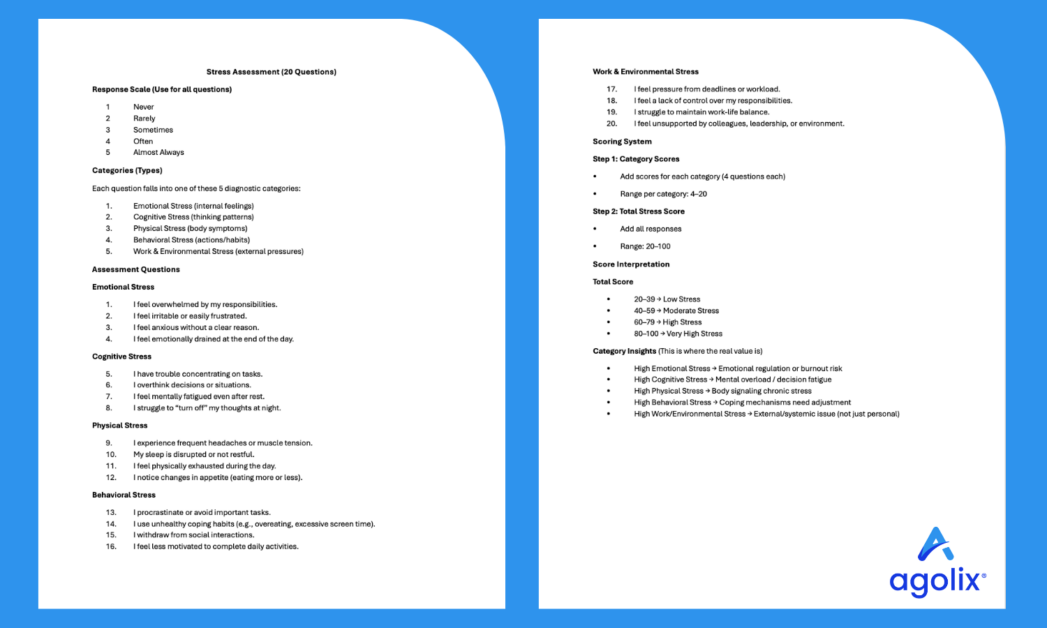
The images below show a pre-designed Stress Assessment — 20 questions organized into five diagnostic categories, a 1–5 response scale, and score interpretation ranges. Copy content like this from your own document, paste it into the chat window, and your assessment is ready to review in minutes.
Please review the rest of the Reference Guide to learn more about our software.
Thank you for choosing Agolix!